

Dashboard widgets
When you log in as an administrator, the main Dashboard page displays the following analytics sections:1. Account overview
The account overview widget shows credit utilization — the percentage of your credit line currently used — with a legend showing Current Balance, Pending Transactions and Available Credit. The header shows the total number of open cards.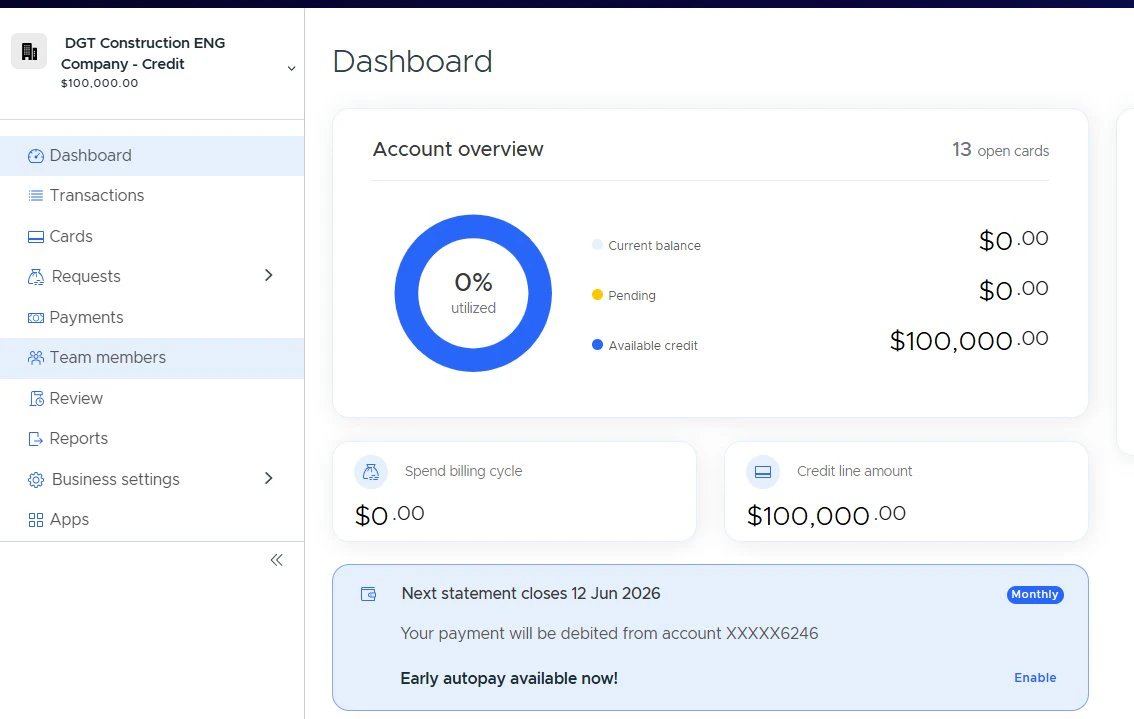
The Account Overview widget on the administrator Dashboard
2. Metric tiles
Below the account overview, quick-glance metric tiles summarize key financial data points:3. Monthly spend
The monthly spend widget visualizes your spending over time. You can toggle between Last 3 months and Last 6 months using the range dropdown. Hover over any data point to see the exact spend amount for that period. The data in this chart refreshes hourly, so it always reflects your most recent spending activity.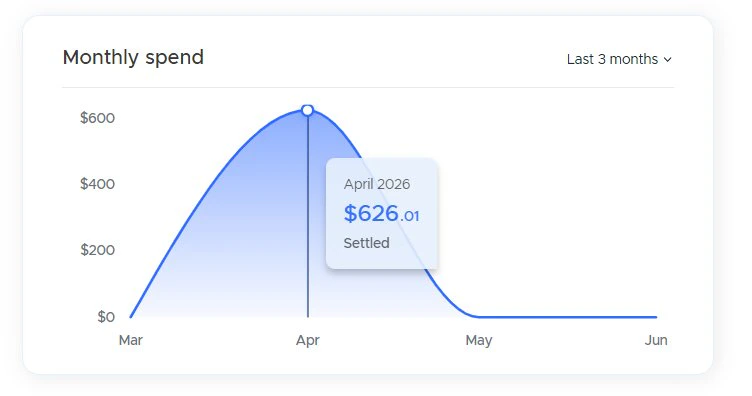
Hovering a data point reveals the exact monthly spend total and settlement status
4. Credit payments
The credit payments widget shows your most recent credit payments (up to 7). Each bar is color-coded by payment status:- Blue — Settled (payment completed successfully)
- Red — Failed (payment was not successful)
- Purple — Pending (awaiting replenishment)
5. My rebates
If your account earns rebate rewards, this card displays:- Year-to-date — Rebate amount earned this year
- Lifetime earned — Total rebates earned since account creation
Cardholder dashboard widgets
When Cardholders log in, they see a personal spending chart on their Dashboard:Monthly spend (Cardholder view)
The same spend chart as the admin view, but scoped to the individual Cardholder’s spending. It appears below the Cardholder’s card image and balance information.Cards page widgets
Credit limit usage
The credit limit usage widget shows which Cardholders are approaching their credit limit with a detailed list. You can filter by utilization threshold (e.g., 50%+, 75%+, 90%+) using the dropdown. The widget shows:- The number of Cardholders at or above the selected threshold out of the total eligible
- A clickable list of those Cardholders with their card last-4 digits and utilization percentage
- An option to enable Early Auto Pay if not already configured
Card-level decline reasons
On each card’s detail page (Declines tab), a “Top decline reasons” widget shows the most common decline reasons for that specific card over a selectable time range (30 days, 3 months or 6 months).Transactions page widgets
Top decline reasons (business-wide)
The top decline reasons widget shows a compact list of the top 5 reasons transactions are being declined across your entire business. Select from Last 30 days, Last 3 months or Last 6 months to adjust the date range. This widget is displayed at the top of the Card Declines tab within the Transactions section.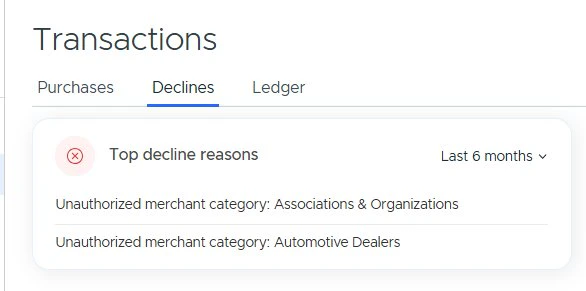
The Top Decline Reasons widget on the Transactions > Declines tab
Note:Understanding decline reasons helps you take corrective action — such as adjusting spend policies, increasing card limits or enabling additional merchant categories — to keep your team productive.
Cardholder purchases overview
When viewing an individual Cardholder’s Purchases tab, a collapsible Overview panel shows that Cardholder’s personal spend chart with a range selector (Last 3 months / Last 6 months).Team members page widget
Registered users
The registered users widget breaks down your registered users into Cardholders and Admins, with the total count displayed in the center. The legend shows the count for each role.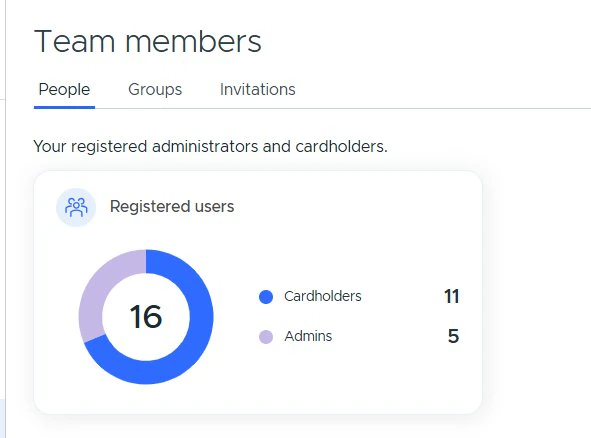
The Registered Users widget on the Team Members page showing a breakdown by role
Availability
If you do not see these widgets, the feature may not yet be enabled for your account. Contact your PEX account manager or PEX Support to inquire about enabling Dashboard analytics for your business.Note:Some widgets are specific to Credit Expense programs (e.g., credit payments, credit limit usage). Prepaid program administrators will see the prepaid-specific metric tiles and spend chart instead.