

Note:Creating a new administrator may only be sent from a web browser. This option is not available on the mobile app.
How to Create a New Administrator Invite
1
Log in to dashboard.pexcard.com
2
Click the “Team Members” tab
3
If you have the Manage users permission, you’ll see a blue Invite Admin button in the upper right corner of the Team Members page. Click it to invite an admin.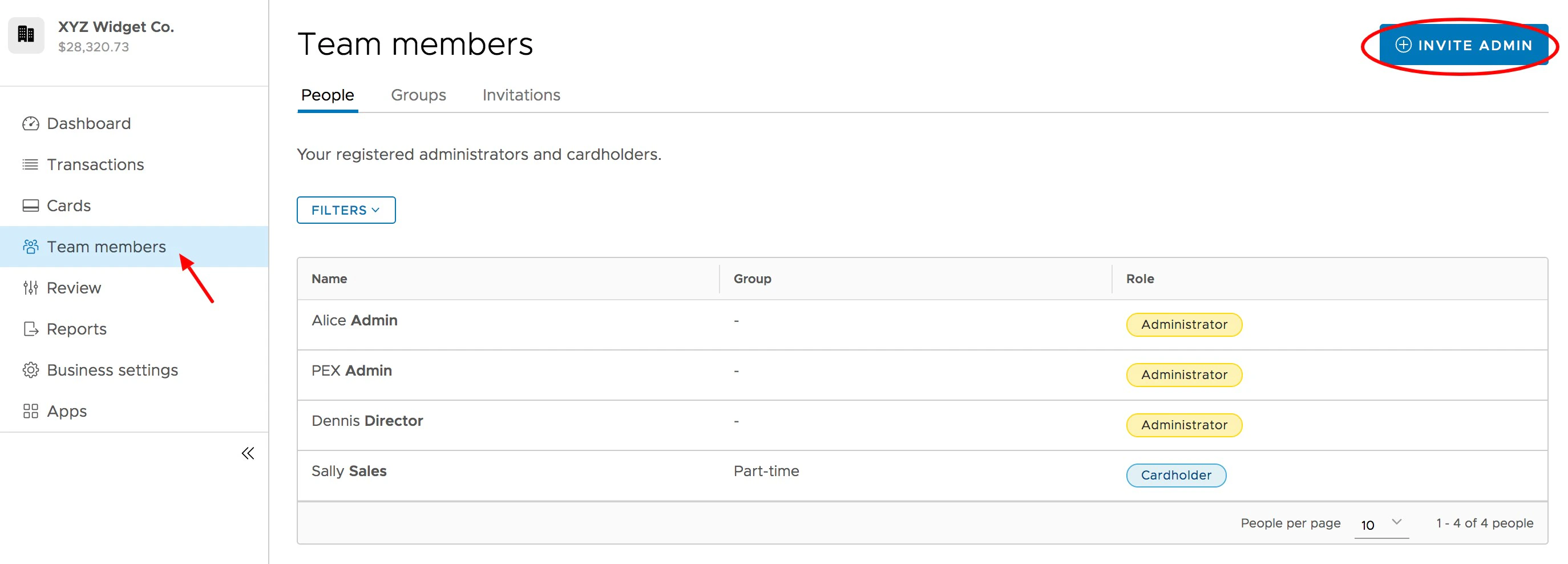
4
Fill out the details on the page titled “Invite admin to your organization”. Required fields are First Name, Last Name, and Email Address.
5
(optional) Enter the address for the Admin
- You can click the link to “Use office address” if you wish to populate these fields with your business address
6
(optional) Enter a phone number
7
(optional) Enter the new Administrator’s date of birth (MM/DD/YYYY)
- Note: Administrators must be at least 18 years old
8
(optional) Choose what the new administrator can do
- If your business uses roles, pick a role from the Role dropdown under Role & Permissions. Its permissions appear read-only. To pick permissions one by one, choose Custom. See How to manage roles.
- Otherwise, select the permissions you want to give them
- An invite carries either a role or individual permissions, never both
- If you don’t choose a role or any permissions, the new administrator starts with no permissions
9
(optional, if applicable) If you have linked accounts, select which other accounts this admin can access under Additional accounts
- A role belongs to one business, so in those other accounts the admin gets the role’s permissions as individual permissions and shows as Custom
10
Click the blue Send invite button at the bottom. Enter your security code if you’re asked for one.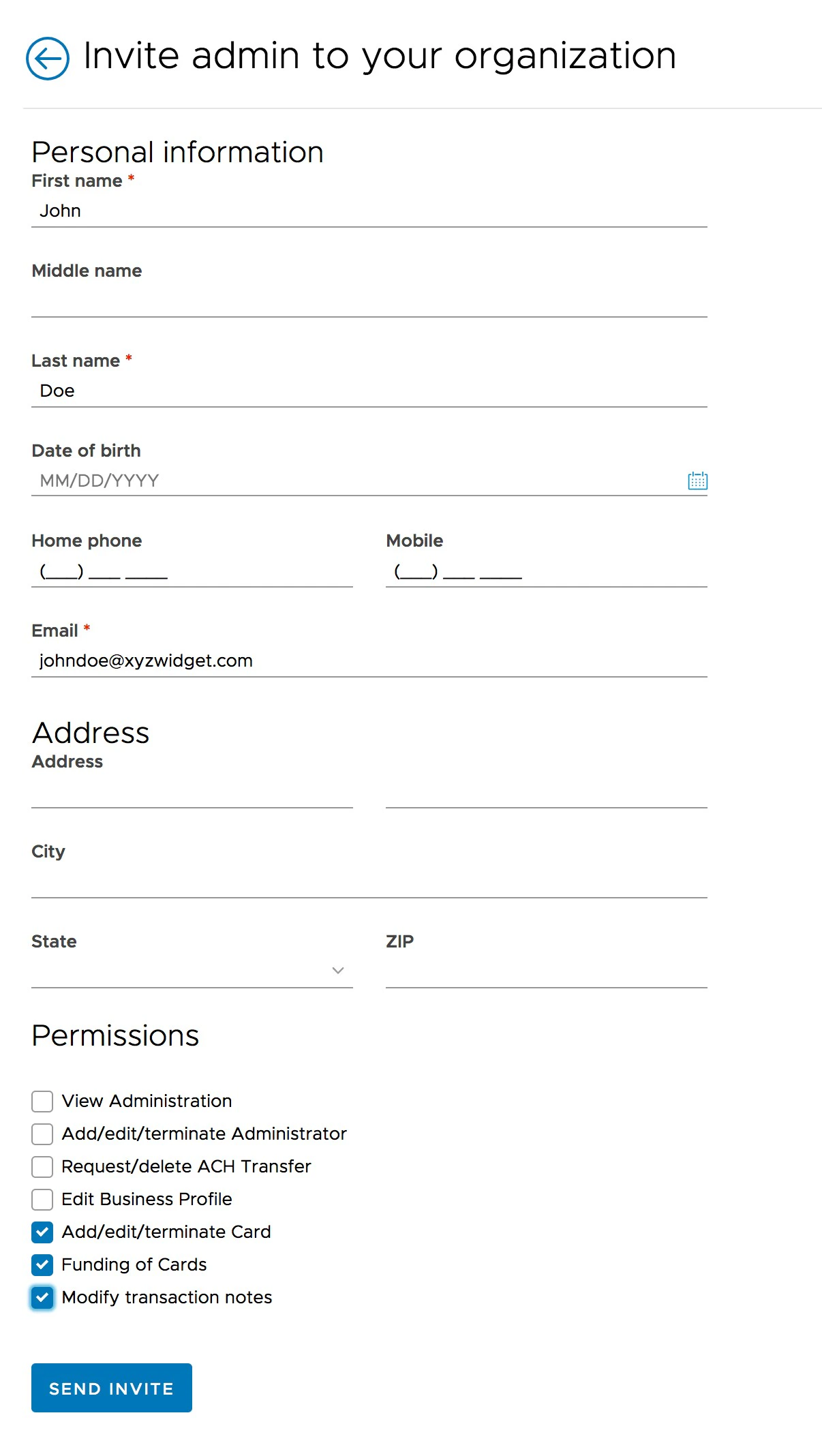
11
The new Administrator will receive an email instructing them how to activate their account. You will be able to review the Invitation on the Invitations tab on the Team Members screen.
- You can click on the name of the invited Admin in the list to review the information entered, resend the invitation, edit and update the invitation, or delete the invitation.
- Status of an Invitation can read Pending or Expired.
- The invitation shows the role you chose, or Custom.
- Have another administrator account already? Link your logins with the steps found here.