Open bills
1
Open the Dashboard tab.
2
In the Review section, tap the Bills tile. Its badge shows the number of bills waiting for review.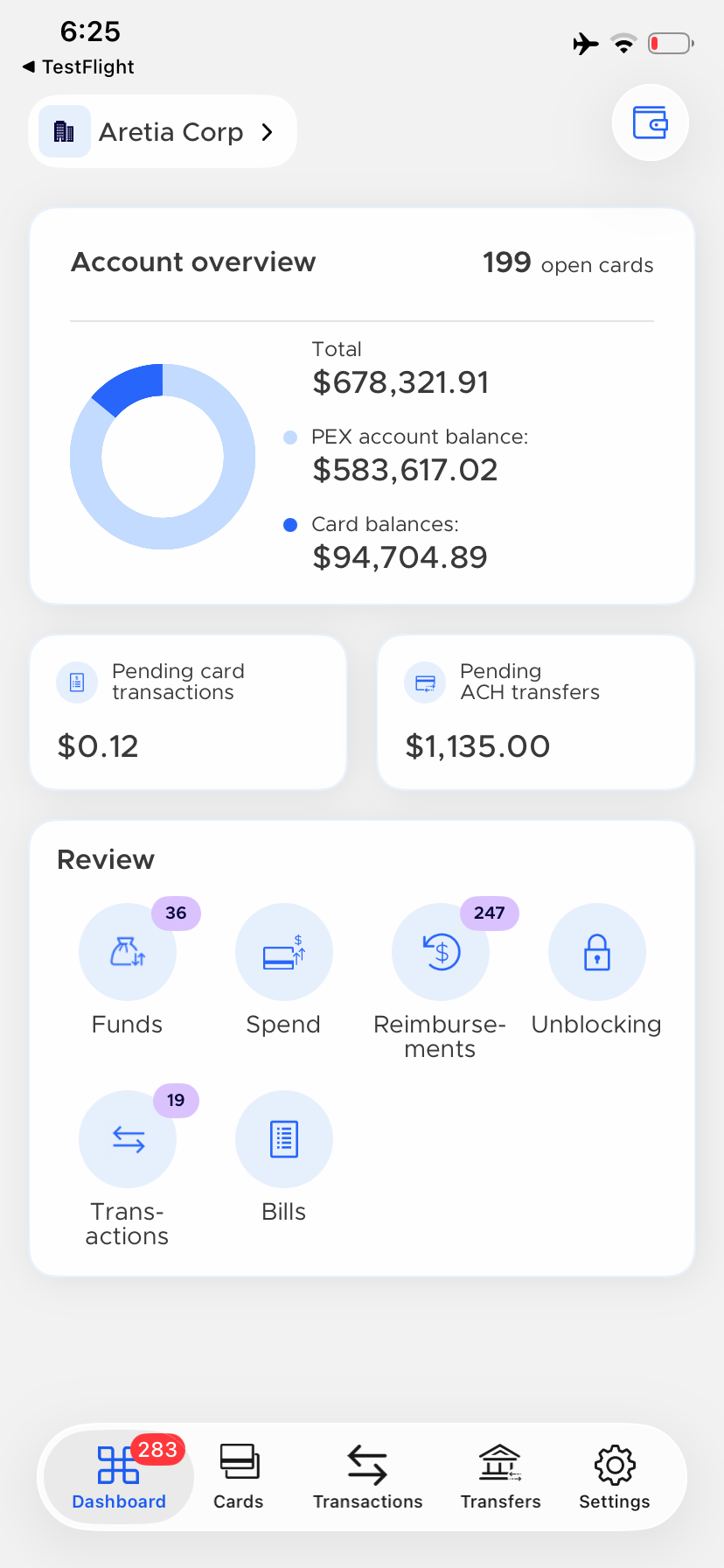
Find bills to review
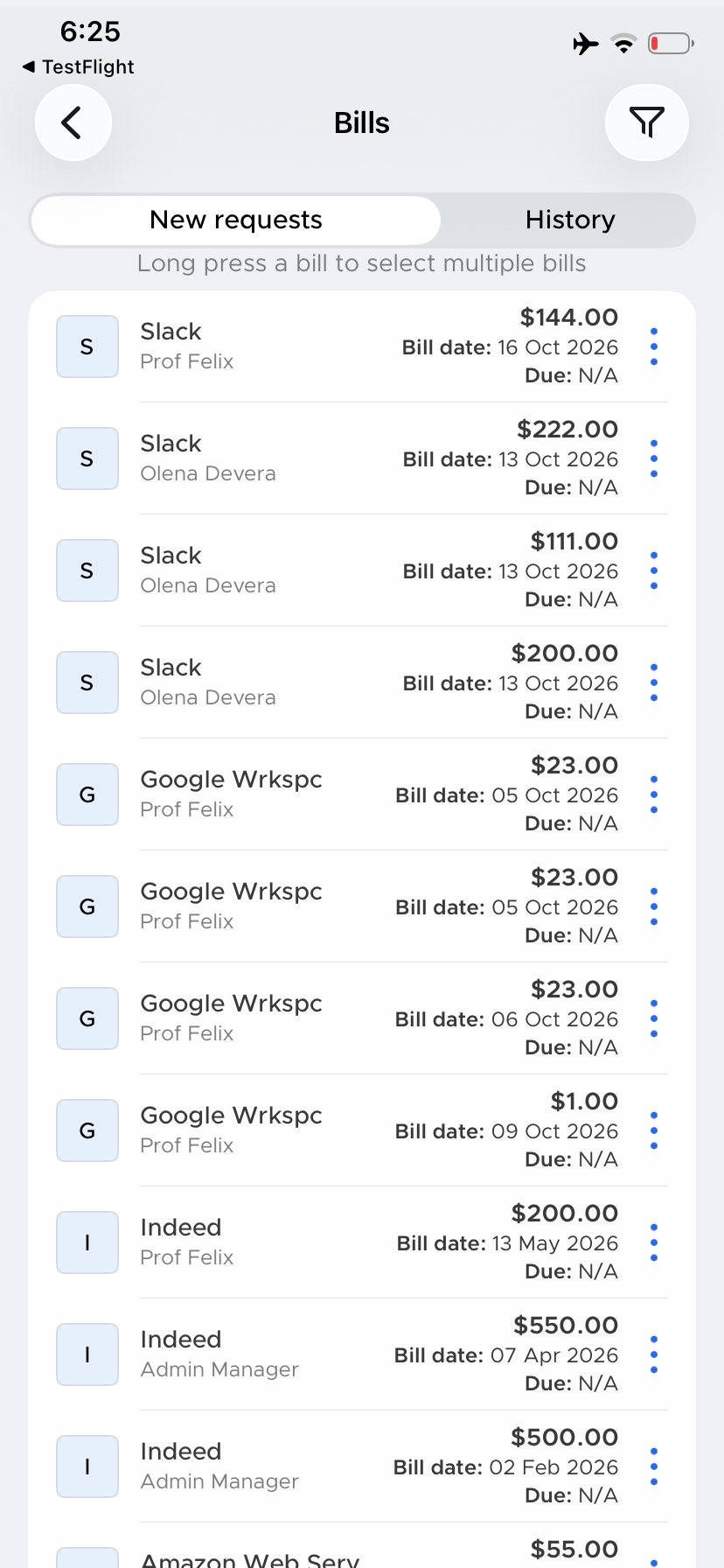
The New requests tab lists bills waiting for review. To narrow the list, tap the funnel icon and filter by:- Review assignment — All or Pending my review. Admins default to Pending my review
- Due date
- Created date
- Amount
Approve or reject a bill
1
From the list
On a bill row, tap ⋮. Choose Approve or Reject. The menu also includes View details.
2
From bill details
To review the bill first, choose View details, then tap Approve or Reject at the bottom of the Bill details page.
- Long-press a bill to select it.
- Select other bills or choose Select all.
- Choose Approve or Reject.
Review bill details
Bill details shows each bill’s vendor, amount, due date, submitter and status. More details includes the bill date and reference number, and Approver(s) lists the approvers. Use the Receipts, Notes and Tags tabs to review bill attachments, notes and tags. You can see all notes. You can use Edit tag(s) and replace invoices on pending bills you can review. Approval override groups can also let you approve out of turn.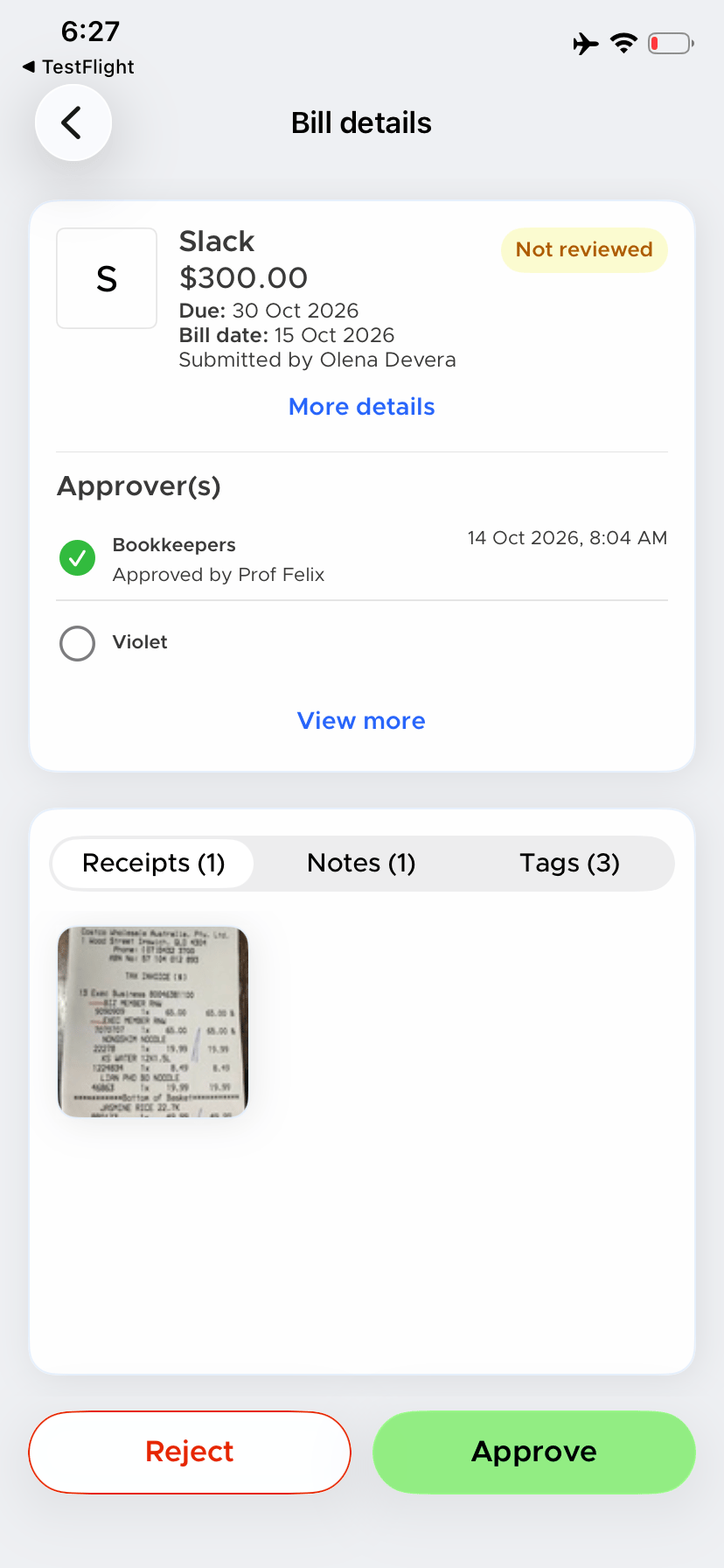
What happens after you review a bill
When your group has approved a bill but additional approvals are still needed, Bill details shows “This item has received approval from one of your groups, but additional approvals are still required.”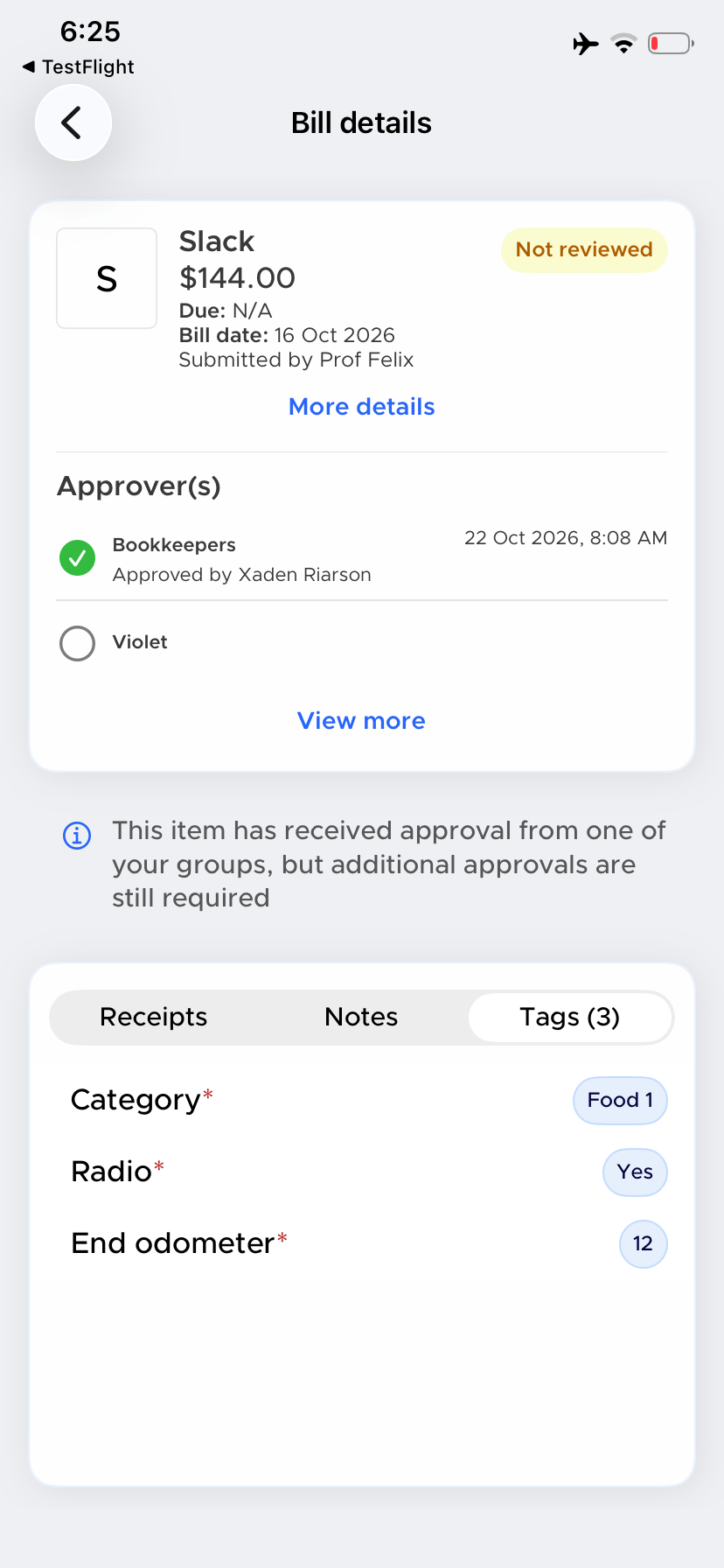
Bill approval push notifications
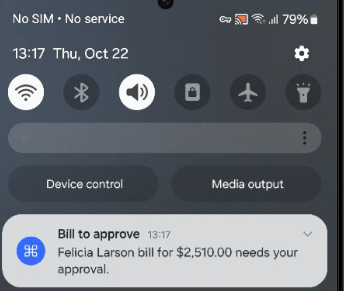
The Bill to approve push notification tells you that a vendor’s bill for the displayed amount needs your approval. Tap it to open Bill details. If the bill has already been reviewed, the notification opens the Bills list instead. To receive these notifications, turn on Bill payment requests in the app under Settings → Notifications. This toggle is available to admins who can review bills and Cardholders in a bill approval policy.