

Prerequisites
Before you can email bills to PEX, ensure the following are enabled for your business:-
“Bill pay” setting
- Go to Business settings > Profile > click Edit > select Enable for Bill Pay > click Update.

- Contact adminsupport@pexcard.com if you don’t see the Bill Pay section.
- You must be an administrator. Only administrators can open the Bill Inbox.
How it works
- Email your bill — Forward or send an invoice/bill to your unique PEX billing email address (shown at the top of the Bill Inbox page).

- AI extraction — PEX automatically extracts key details: vendor name, amount, bill date, due date, and invoice number.
- Review in Inbox — The bill appears in the Inbox tab with status indicators showing if it is ready for review or needs attention.
- Edit & submit — Open the bill, verify or correct extracted data, assign a vendor, add tags, and submit.
- Approve or reject — Submitted bills move to the Review tab where they can be approved or rejected.
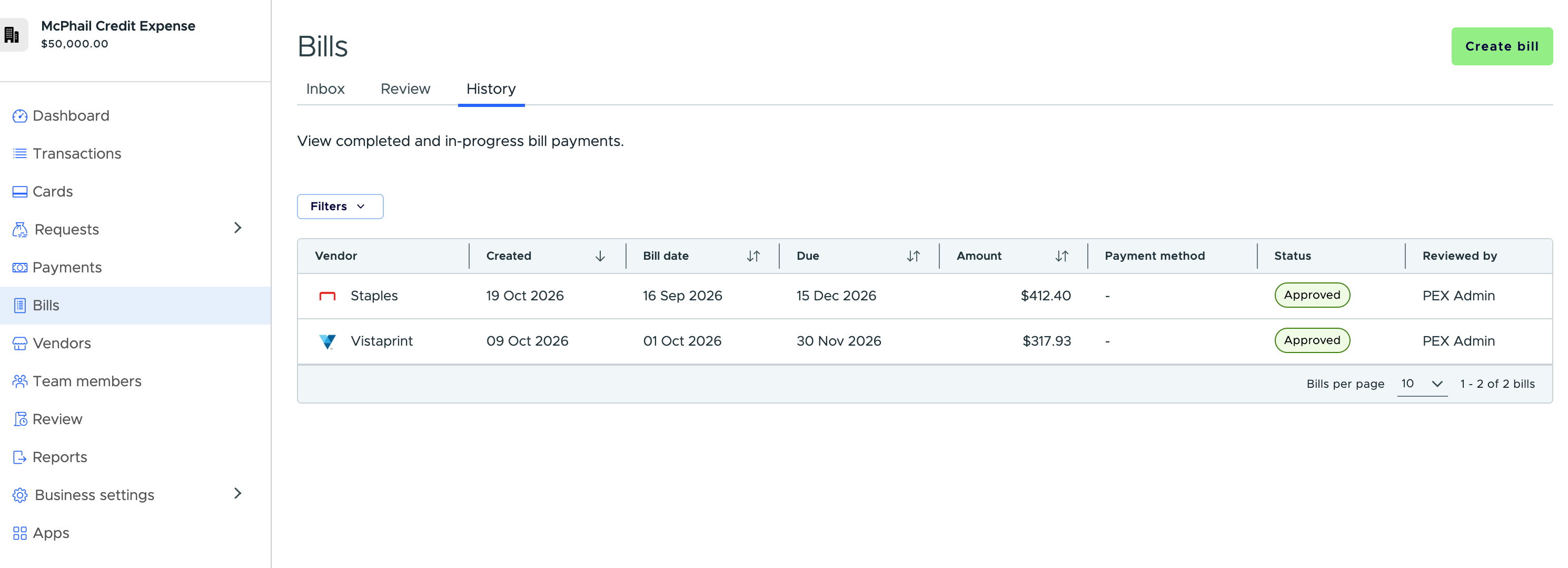
- History — Approved and rejected bills appear in the History tab for reference.
- Payment — To process payment for approved bills, go to the Payments menu in the sidebar.

Email a bill
Send your invoice or bill to your dedicated PEX billing email address. You can find this email at the top of the Bill Inbox page.- Click the copy icon next to the email address to copy it to your clipboard.
- Attach your invoice as an image (JPEG, PNG) or PDF. Multi-page PDFs are supported.
- You can send multiple invoices in a single email—each attachment is processed separately.
- You can also set up email forwarding rules in your email client to automatically forward vendor invoices to PEX. Contact adminsupport@pexcard.com for help with this.
Inbox tab
The Inbox tab displays all incoming emailed bills that are pending or need review.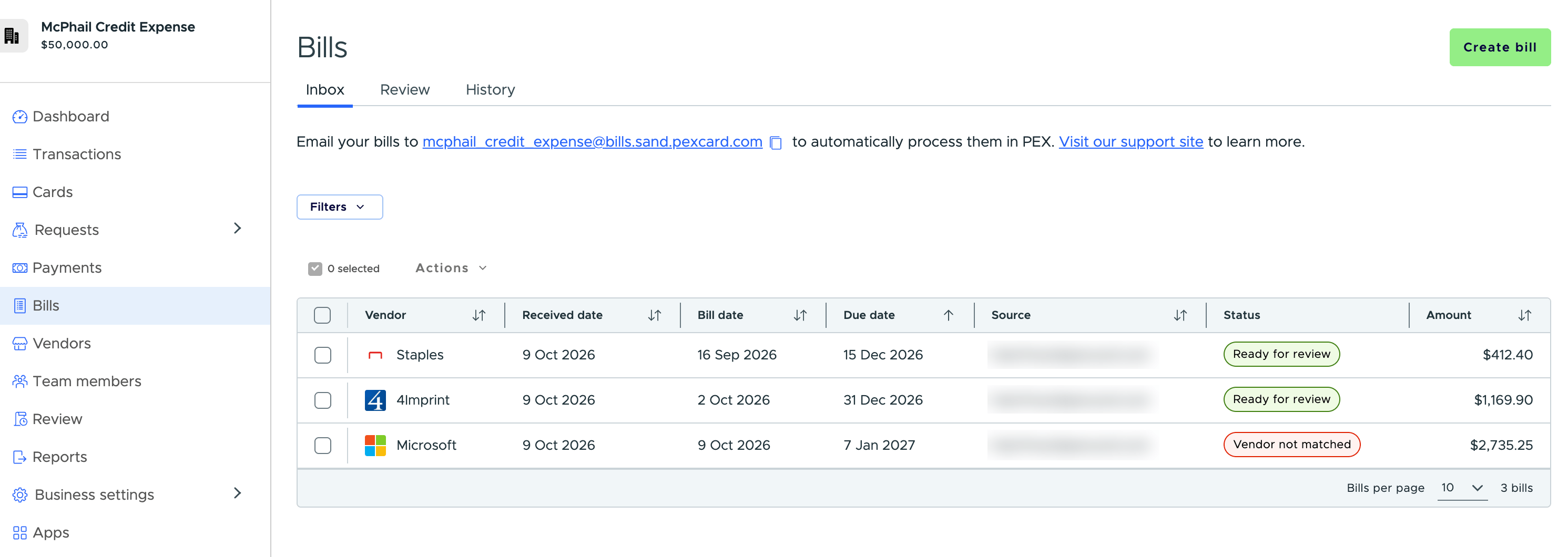
- Vendor — The extracted vendor name and icon (or “Not extracted” if unavailable).
- Received date — When the email was received.
- Source — The sender’s email address.
- Due date — Extracted due date (or “Not extracted”).
- Status — One of the following:
- Ready for review (green) — All required fields extracted successfully.
- Needs tags (yellow) — Required tags are missing.
- Missing vendor / Vendor not matched / Missing amount / Missing bill date (red) — One or more required fields need attention.
- Duplicate (yellow) — PEX detected this may be a duplicate of an existing bill.
- Amount — Extracted dollar amount.
Review & edit a bill
Click any row in the Inbox to open the bill editor. The page shows:- Document preview — A preview of the attached bill. Double-click to expand or collapse the viewer.
- Action items alert — A list of items that need your attention (e.g., “Select a vendor”, “Enter an amount”).

- Vendor (required) — Select from your vendor list. If the vendor doesn’t exist, click Create vendor to add a new one with prefilled data from the bill.
- Amount (required) — Dollar amount of the bill.
- Bill date (required) — The bill date.
- Due date (optional) — Payment due date.
- Invoice No. (optional) — Reference number from the invoice.
- Tags — If your business has required tags configured, fill them in. When the vendor has a previous bill, we copy its tags for you — select Clear to remove them. See Tags from the vendor’s last bill in Bill Pay: Create & Send a Bill Payment. You can also split tag allocations if allocation tags are enabled.
- Note (optional) — Add a note for context.
Review tab
The Review tab lists all bills pending approval.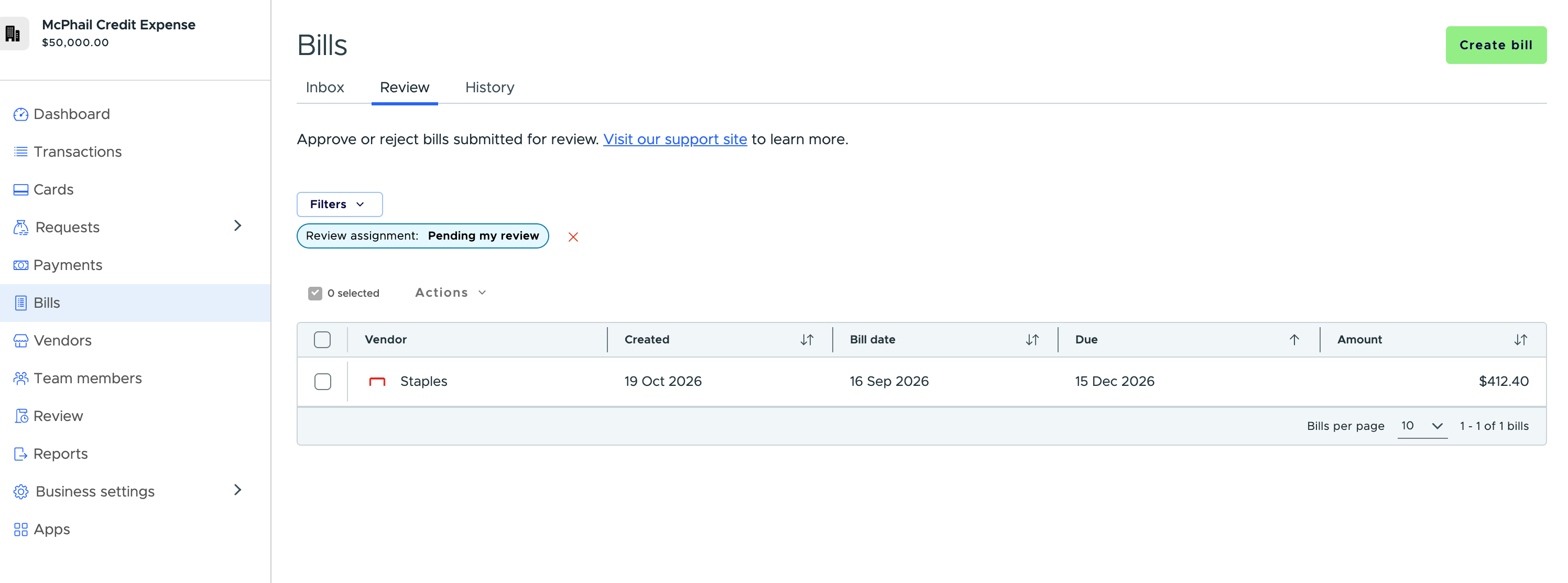
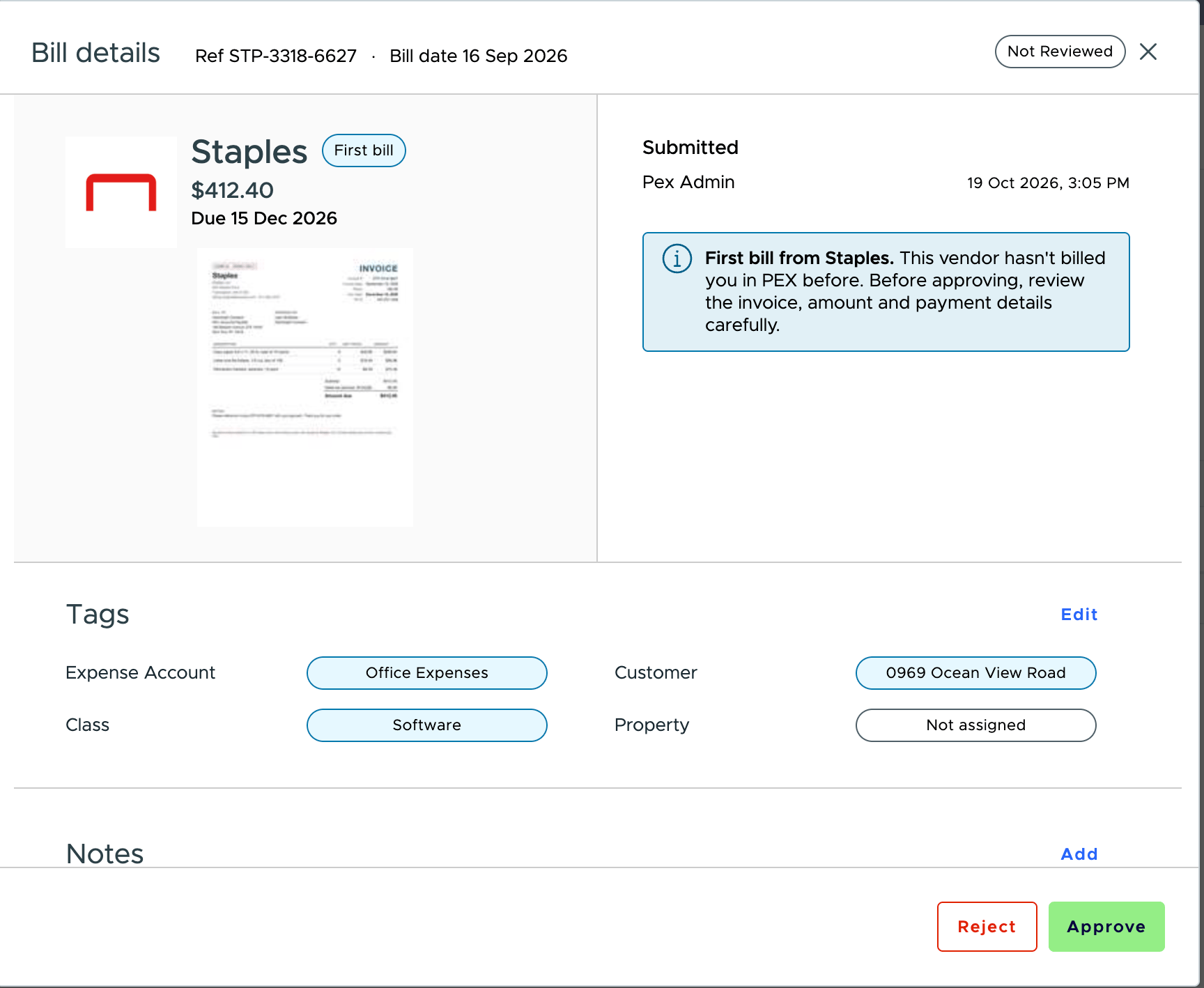
- Click a bill to view its full details in a side panel.
- Sort by Created, Due or Amount by selecting the column header. The tab opens sorted by due date, oldest first.
- Filter by Vendor, Created date, Due date, Amount, and Review assignment (e.g., “Pending my review”).
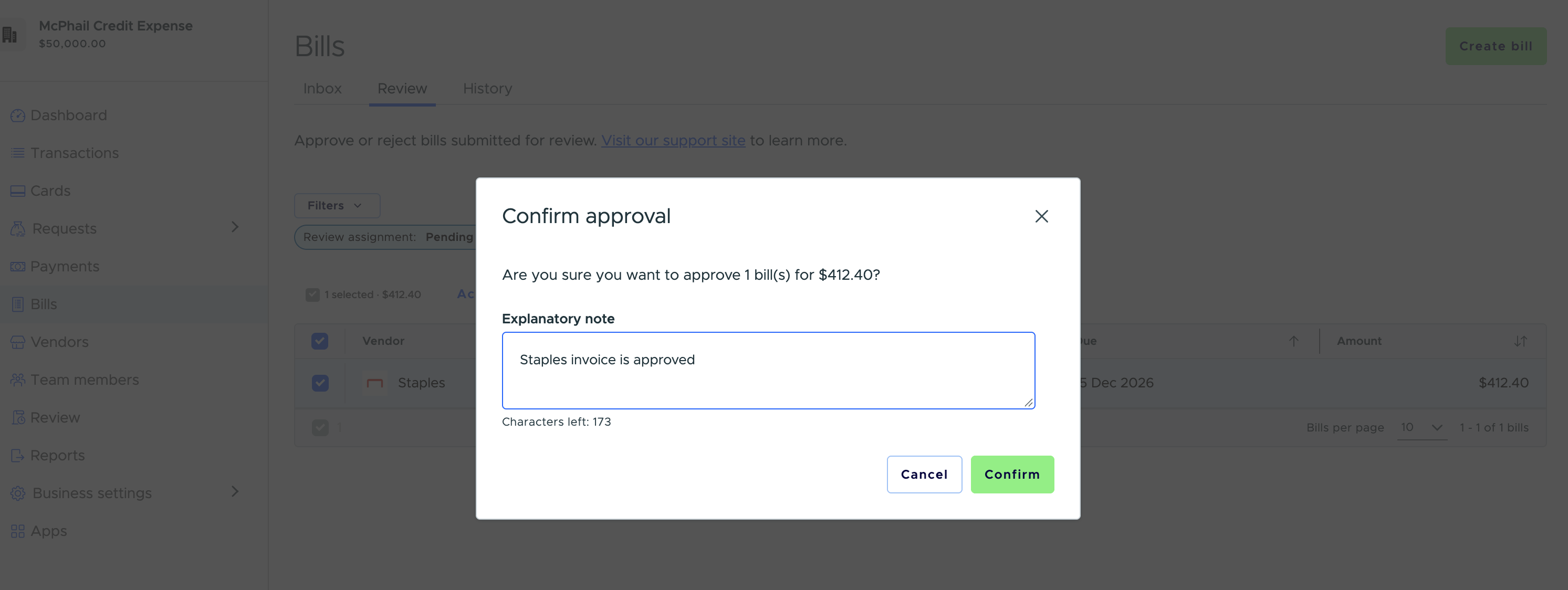
- Select one or more bills, then use Actions to Approve or Reject in bulk.
- When rejecting, a reason is required.
History tab
The History tab shows all approved and rejected bills for reference. You can:- Filter by Vendor, Created date, Due date, and Amount.
- Sort by Created, Due or Amount. The tab opens newest first.
- See how each bill was paid in the Payment method column.
- Click any bill to view its details.
FAQ
Where do I find my PEX billing email address?
Where do I find my PEX billing email address?
It is displayed at the top of the Bill Inbox page. Click the copy icon next to it to copy the address to your clipboard.
Can I forward bills from my regular email?
Can I forward bills from my regular email?
Yes. You can set up forwarding rules in your email client to automatically send vendor invoices to your PEX billing email. Contact adminsupport@pexcard.com for assistance.
What file formats are supported?
What file formats are supported?
PEX accepts images (JPEG, PNG) and PDF files, including multi-page PDFs. You can attach multiple files to a single email.
What happens if PEX can't extract data from my bill?
What happens if PEX can't extract data from my bill?
The bill will still appear in your Inbox with a red status label indicating the missing fields (e.g., “Missing vendor”, “Missing amount”). You can manually fill in the details using the bill editor.
How does duplicate detection work?
How does duplicate detection work?
PEX compares incoming bills against existing inbox items and payment records. If a potential duplicate is found, it is flagged with a yellow “Duplicate” label in the Inbox. Hover over the label for details about the original item.
What if the extracted vendor doesn't match any of my vendors?
What if the extracted vendor doesn't match any of my vendors?
In the bill editor, you’ll see a “Vendor not found” message with a Create vendor link. Click it to add a new vendor—PEX will prefill the form with extracted data (name, address, contact info, bank details) from the invoice.
Can I approve or reject multiple bills at once?
Can I approve or reject multiple bills at once?
Yes. In the Review tab, select the bills you want to process using the checkboxes, then use the Actions menu to approve or reject them in bulk. A reason is required when rejecting.
Who can access the Bill Inbox?
Who can access the Bill Inbox?
Only administrators can access the Bill Inbox.