

Connect PEX and NetSuite
To connect your PEX and your NetSuite accounts from the PEX Marketplace follow these steps:- Log in to http://dashboard.pexcard.com/
- Navigate to Apps > Available
- Locate Connector for NetSuite.
-
Click More info > Install > Launch.
- You’ll be re-directed to a Connect tab.
-
Click Connect.

NetSuite Set Up
PEX provides clear step-by-step instructions to help you get set up in NetSuite. Note: Permanent Admin permissions in NetSuite are required to complete the following setup.-
PEX will open a new popup window.

-
Click on the AccountLink Bundle active link.

- You are redirected to your NetSuite account. If you aren’t logged in already, please log in and click on the AccountLink Bundle active link again.
-
Click Install.

-
If there are any conflicts on the Bundle Installation page (like the screenshot below), please select the “Replace Existing Object” Option. Otherwise, you may run into a “Your NetSuite Bundle is outdated” error.

-
If no conflicts, click Next.

-
Click on the Enable Features Page active link.

-
Navigate to the SuiteCloud tab.

-
Enable the following features:
- SuiteBuilder - CUSTOM RECORDS
- SuiteScript - CLIENT SUITESCRIPT
- SuiteScript - SERVER SUITESCRIPT
- SuiteTalk (Web Services) - REST WEB SERVICES
- Manage Authentication - TOKEN-BASED AUTHENTICATION
-
Click Save.

-
Click Next.

-
Check the I have successfully followed all the steps checkbox and click Continue.

-
Click Allow.

-
You will see the Connected: Ready status.

Configure Transaction Settings
On the Transaction Settings card, you can configure the Start Date and End Date. Start date:- Must be less than 1 year ago (if today is Nov 30, 2024 then you can not go further back than Nov 30, 2023).
- Leave empty to default 2 months back.
- Auto-sync will always process 2 months back.
- Leave empty to default to the time of sync.
- Temporarily pick a small date range for testing and reconciliation purposes.
- The dropdown lists all accounts of a credit card type from the NetSuite account.
- Bill Payments to PEX will reduce the amount owed on this account.
- Purchases in PEX will be charged to this account.
- Fees in PEX will be charged to this account.
- Rebates from PEX will reduce the amount owed on this account.
- Reimbursements will not use this account. They will be paid from the separate Bank Account you select in the Sync reimbursements section.
Sync purchases
To sync purchases to NetSuite, enable the toggle Create journal entries in NetSuite for cardholder purchases. Configure the following:-
Sync all purchases or only approved purchases
- “Only sync approved purchases” means that purchases must be approved in PEX before syncing to NetSuite.
-
Sync purchase attachments
- If this box is checked, purchase receipts will sync to NetSuite.
-
Use settlement dates or purchase dates
- Purchases sync only once settled, but you can choose either the settlement or purchase date as the posting date in NetSuite.
-
Create a NetSuite vendor for each unique merchant.
- Leave unchecked to map the vendor to a static NetSuite vendor or a PEX tag in the Mappings table below.
- If this box is checked, PEX will record purchases with existing vendors in your NetSuite account or auto create a new vendor if one doesn’t exist.
-
Use standardized vendor names.
- If this box is checked, PEX will record purchases like “Walmart23455” and “Walmart-Brooklyn223” simply as “Walmart” in NetSuite, instead of using the non-standardized vendor names.
-
Mapping the “Expense Account” field to a static value means that you can select one account out of the many presented in NetSuite, and that value (“Advertising” in our example below) will be applied to all PEX purchases.\

-
Mapping the “Expense Account” field to a PEX tag (“Expense Account” in our example below) means that you and your cardholders can select one of the tag values for each purchase.\


-
Enable the sync toggle to sync field values from NetSuite into PEX as tag options.


Custom Segments
PEX imports custom segments from NetSuite to support complete and accurate transaction coding.- PEX supports custom segments of the List/Record type.
-
PEX displays a custom segment in the Mappings table even if it is hidden or disabled.
- You can sync a transaction with such a custom segment to NetSuite, but to view it in NetSuite, you must change its Display Type to Normal.
-
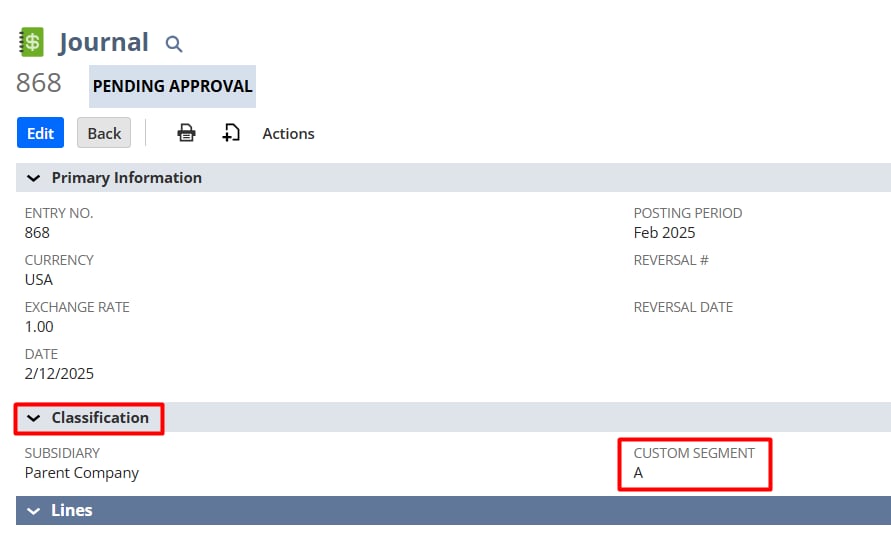
When a custom segment is applied to a Journal Entry (Transactions → Application & Sourcing → Application → “Applied” is checked for “Journal Entry”), PEX syncs the transaction with the custom segment and displays it under the Classification section in NetSuite.\
-
PEX does not display a custom segment in the Mappings table if:
- Custom segment is inactive in NetSuite.
- Custom segment is not applied to Journal Entry (Transactions -> Application & Sourcing -> Application -> “Applied” is not checked for “Journal Entry”).
- PEX does not display inactive custom segment values in the Mappings table dropdown lists, nor does it sync them as tag options in Tag Manager.
Transaction Body Fields
PEX imports transaction body fields from NetSuite to support complete and accurate transaction coding.-
The following types of transaction body fields are currently supported:
- Check Box
- Currency
- Decimal Number: Maximum of 10 characters (including commas and dots).
- Document, static only?
- Email Address: Must include @ and .com.
- Free-Form Text: Up to 200 characters.
- Hyperlink: Must start with http://, https://, ftp://, or file://; maximum of 200 characters.
- Image
- Integer Number: Maximum of 10 characters (including commas and dots).
-
List/Record
-
PEX does not display custom fields of the list type that have no options in the Mappings table.

-
PEX does not display custom fields of the list type that have no options in the Mappings table.
- Long Text
- Password: Maximum of 15 characters.
- Percent: Maximum of 15 characters, NetSuite automatically adds % (e.g., 5.123456789123 becomes 5.1235%).
- Phone Number: Maximum of 32 characters, NetSuite automatically adds + or +1 at the beginning if not already included.
- Rich Text: Up to 200 characters.
- Text Area: Up to 200 characters.
-
PEX displays a transaction body field in the Mappings table even if it is hidden or disabled.
- You can sync a transaction with such a transaction body field to NetSuite, but to view it in NetSuite, you must change its Display Type to Normal.
-
Ensure that Store Value is checked so the transaction body field appears as a column under the Lines section.\

-
PEX does not display a transaction body field in the Mappings table if:
- Transaction body field is inactive in NetSuite.
- Transaction body field is not applied to Journal (Applies To -> “Journal” is not checked).
Transaction Line Fields
PEX imports transaction line fields from NetSuite to support complete and accurate transaction coding.-
The following types of custom fields are currently supported:
- Boolean
- Currency
- Decimal: Maximum of 10 characters (including commas and dots).
-
List
-
PEX does not display custom fields of the list type that have no options in the Mappings table.
-
PEX does not display custom fields of the list type that have no options in the Mappings table.
- Free-form text: Up to 200 characters.
- Text area: Up to 200 characters.
- Hyperlink: Must start with http://, https://, ftp://, or file://; maximum of 200 characters.
- Date: Format must be YYYY-MM-DD.
- Email address: Must include @ and .com.
- Integer Number: Maximum of 10 characters (including commas and dots).
- Password: Maximum of 15 characters.
- Percent: Maximum of 15 characters, NetSuite automatically adds % (e.g., 5.123456789123 becomes 5.1235%).
- Phone number: Maximum of 32 characters, NetSuite automatically adds + or +1 at the beginning if not already included.
-
PEX displays a transaction line field in the Mappings table even if it is hidden or disabled.
- You can sync a transaction with such a transaction line field to NetSuite, but to view it in NetSuite, you must change its Display Type to Normal.
-
Ensure that Store Value is checked so the transaction line field appears as a column under the Lines section.\

-
PEX does not display a transaction line field in the Mappings table if:
- Transaction line field is inactive in NetSuite.
- Transaction line field is not applied to Journal (Applies To -> “Journal” is not checked).
Sync fees
To sync business & cardholder fees to NetSuite, enable the toggle Create journal entries in NetSuite for business & cardholder fees.

Sync Bill Payments
To sync bill payments to NetSuite, enable the toggle Create journal entries in NetSuite for bill payments.

Sync rebates
To sync business rebates to NetSuite, enable the toggle Create journal entries in NetSuite for business rebates.

Sync reimbursements
To sync cardholder reimbursements to NetSuite, enable the toggle Automatically import cardholder reimbursements as paid vendor bills.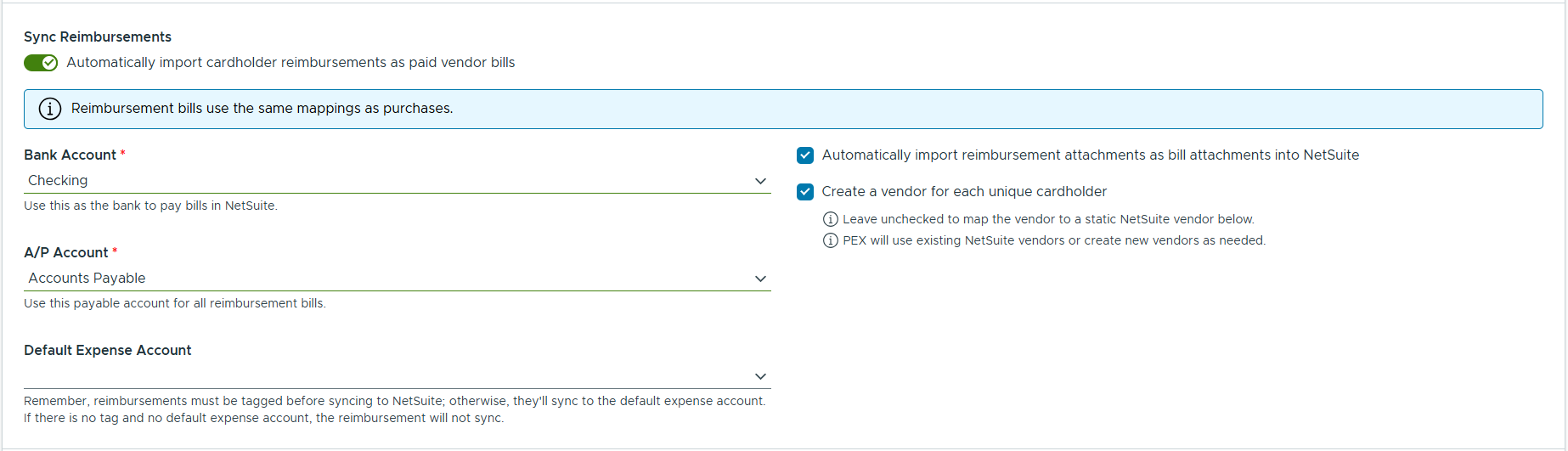
-
Bank Account (required)
- Use this as the bank to pay bills in NetSuite. The Vendor Payment for each reimbursement is deducted from this account, dated with the PEX payout date.
-
A/P Account (required)
- Use this payable account for all reimbursement bills.
-
Default Expense Account (optional)
- Reimbursements must be tagged before syncing to NetSuite; otherwise, they’ll sync to the default expense account. If there is no tag and no default expense account, the reimbursement will not sync.
- This default is separate from the purchase Expense Account default.
-
Automatically import reimbursement attachments as bill attachments into NetSuite
- If this box is checked, reimbursement receipts are attached to the Vendor Bill (not the Vendor Payment).
-
Create a vendor for each unique cardholder
-
Leave unchecked to map the vendor to a static NetSuite vendor below.
- When unchecked, a required NetSuite Vendor selector appears; every reimbursement bill will post to this vendor.
-
If checked, PEX will use existing NetSuite vendors or create new vendors as needed, matching cardholders to vendors by name.
- Note: name variations (for example “John Smith” vs. “Smith, John”) may result in duplicate vendors, and two cardholders with the same name will share one vendor. The payee is always a NetSuite Vendor; no employee or contact records are created.
-
Leave unchecked to map the vendor to a static NetSuite vendor below.
- A reimbursement whose payment is still in flight is posted as an unpaid bill first; once the payment settles, PEX pays that same bill using the actual payout date.
- If a reimbursement payment is returned or cancelled by PEX before it settles, the connector deletes the bill (and payment, if one exists) from NetSuite.
- If a NetSuite approval workflow leaves the bill unapproved or pending approval, PEX retries on a later sync and pays the bill once it is approved. A rejected bill is reported as an error. Before paying, PEX checks the bill total against the amount actually disbursed and blocks payment if they no longer match.
Sync Tab
In the Sync tab, you can:- View the last synchronization time.
-
Manually sync transactions/tag options by clicking Execute.


- View Connection info.
-
Enable/disable auto-sync.
- Enabled: Transactions sync automatically every 24 hours.
-
Disabled: Transactions will not sync automatically.

- Disconnect.
-
View the History of transactions synced to your NetSuite account.

- View Settings information.
-
Edit settings if necessary.

Auto-sync will always process transactions based on the start date specified on the Connect tab, with a maximum limit of 2 months back from today. If there is no start date specified on the Connect tab then auto-sync will sync transactions up to 2 months back from today. Manual sync
Manual sync will process transactions based on the start date specified on the Connect tab, with a limit of 1 year back from today. If there is no start date specified on the Connect tab then manual sync will process transactions only up to 2 months back from today.
Auto Tagger
The Auto Tagger app is a great complement to NetSuite. It allows you to create rules that auto-tag purchases. Learn more.View Synced Transactions in NetSuite
Log into your NetSuite account and navigate to Transactions -> Financial -> Make Journal Entries -> List to view synced transactions.
View Synced Reimbursements in NetSuite
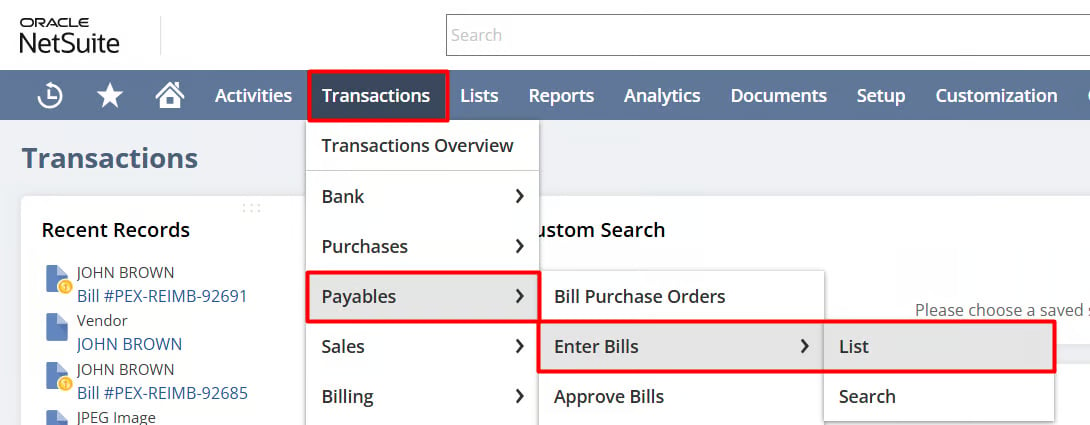
Log into your NetSuite account and navigate to Transactions -> Payables -> Enter Bills -> List to view reimbursement bills. To view the payment for a bill, open the bill and go to the Related Records tab. Each bill shows Approval Status = Approved and, once the payment settles, Paid In Full.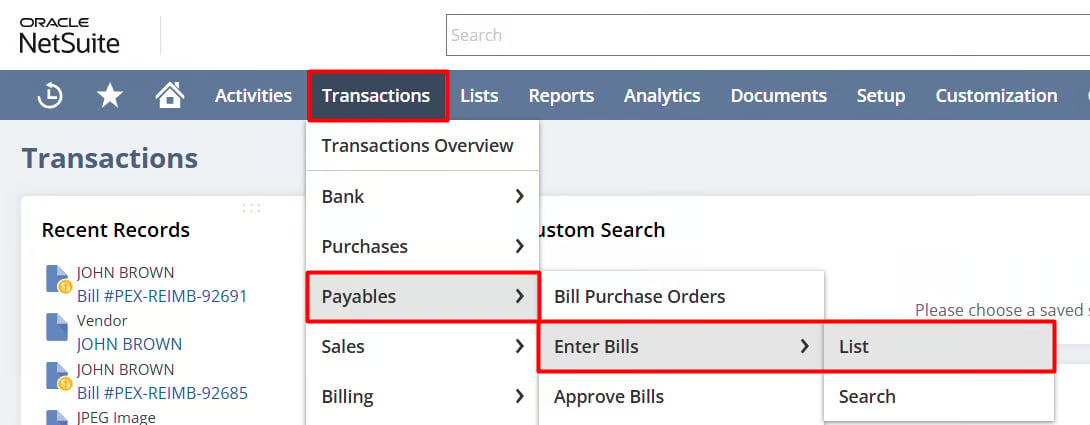
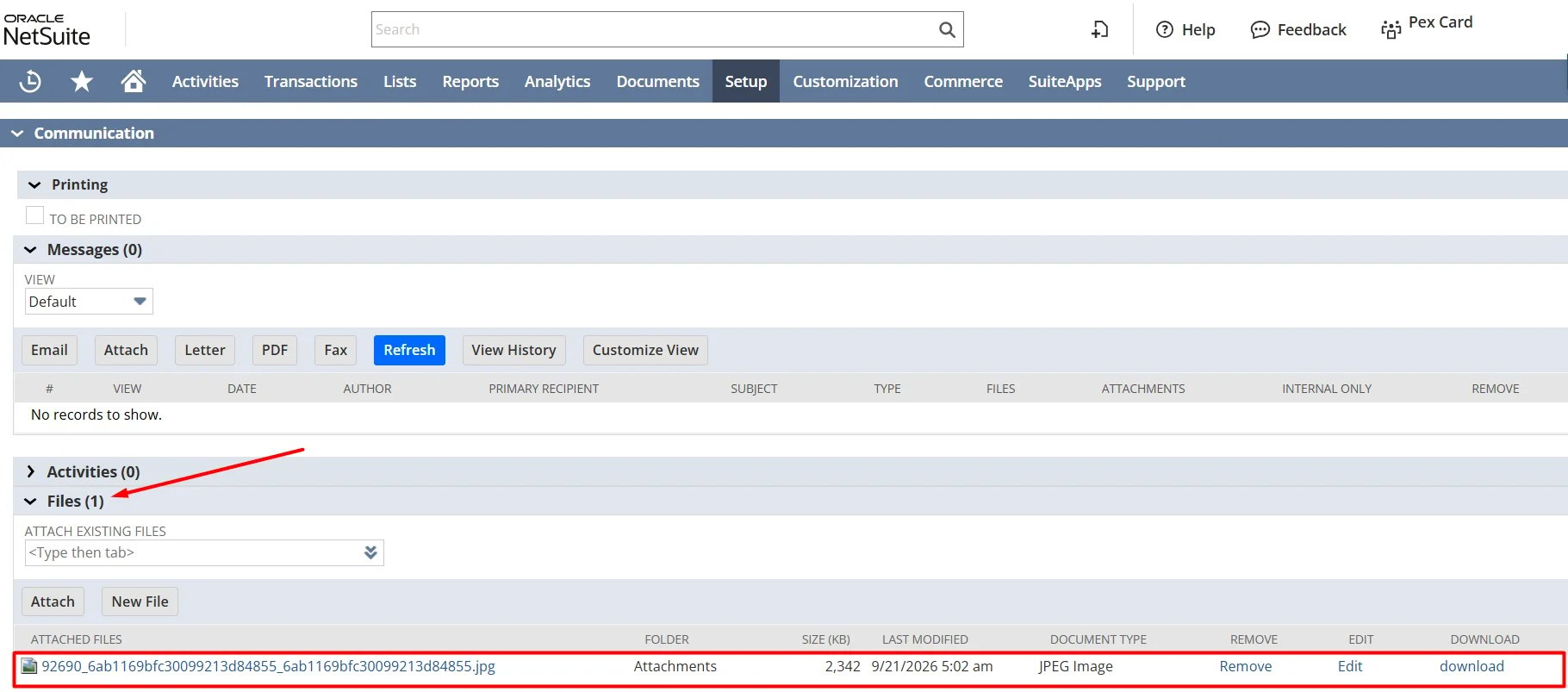
View Synced Receipts in NetSuite
Log into your NetSuite account and navigate to Transactions -> Financial -> Make Journal Entries -> List ->

Frequently asked questions
How do receipt images show up in NetSuite?
How do receipt images show up in NetSuite?
Receipt images are stored directly in the NetSuite Journal Entry to serve as your system of record. Reimbursement receipts are stored on the Vendor Bill.
How do I map PEX spend to a liability account in NetSuite?
How do I map PEX spend to a liability account in NetSuite?
By default, the NetSuite connector only syncs expense-type accounts, so liability accounts (e.g., Other Current Liability) won’t appear in the account dropdowns or Tag Manager. If you need to map PEX spend to a liability account, contact PEX Support and we’ll enable liability account sync for your business.
Does PEX support NetSuite custom fields?
Does PEX support NetSuite custom fields?
Yes. Custom Segments, Transaction Body Fields, Transaction Line Fields are supported.
Do pending transactions get synced?
Do pending transactions get synced?
No, only settled transactions are synced. If you see a “Pending” label next to the merchant name as shown on the screen below, then the transaction is still in the pending status.
Do transactions of closed cardholders get synced?
Do transactions of closed cardholders get synced?
Yes.
Can I combine manual and automatic tag sync from NetSuite to PEX?
Can I combine manual and automatic tag sync from NetSuite to PEX?
We strongly recommend using automatic sync of tag options from NetSuite to PEX. This will keep your PEX tags and NetSuite fields in sync. For more information, check out the support article “Create PEX tags for NetSuite”.
Will a previously synced transaction re-sync to my NetSuite account if I change its status (Rejected -> Approved), re-tag or add another receipt?
Will a previously synced transaction re-sync to my NetSuite account if I change its status (Rejected -> Approved), re-tag or add another receipt?
No, if you need to resync a transaction, please contact the PEX support team.
Can PEX sync transactions as auto-approved journal entries to NetSuite?
Can PEX sync transactions as auto-approved journal entries to NetSuite?
PEX can sync approved transactions to NetSuite, but it currently cannot auto-approve them as journal entries in NetSuite. Note: this is being added as an enhancement soon. Reimbursement bills, however, are posted with Approval Status = Approved.Quick workaround: Follow this link to add the workflow for auto-approving journal entries in NetSuite https://suiteanswers.custhelp.com/app/answers/detail/a_id/95462/~/automatically-approve-existing-journal-entries-via-workflow- Just make two adjustments:#1.6 Select Journal for Type.

What type of cardholder transactions sync?
What type of cardholder transactions sync?
PEX only syncs active cardholders. Any deleted or inactive cardholder transactions will not sync. We recommend syncing all existing purchases before closing/deleting a PEX card.
Which reimbursements sync to NetSuite?
Which reimbursements sync to NetSuite?
Only reimbursements that have been paid through PEX (i.e. a reimbursement payment exists). Reimbursement requests that are still awaiting approval or have not been paid are not synced.
Why did my reimbursement fail to sync?
Why did my reimbursement fail to sync?
The most common causes are: no Expense Account tag and no Default Expense Account; a missing Bank Account or A/P Account; the cardholder vendor is not valid for the selected subsidiary; or the Vendor Bill is still pending approval or was rejected in NetSuite. The specific error is shown in the Sync tab History for that reimbursement.
Didn’t find the answer you were looking for?
Didn’t find the answer you were looking for?
Check out our Accounting Software Connector Troubleshooting article.