In just a few minutes, you’ll be ready to send bills via PEX: enable the feature, add your vendors (payees), and make sure your account is funded and permissions are in place.
1. Before you begin
Before creating or paying bills, confirm the following:
Required permissions
You must be:
-
an Admin, or
-
a user with Bill Pay permissions, including:
-
Manage bills & vendors
-
Manage ACH transfers (for ACH payments; on PEX Credit accounts it’s called Pay statement early through ACH)
-
Add vendors (to create vendors)
Bank accounts
- You must have one or more external accounts linked for ACH payments.
Vendors
- You must have at least one vendor created before creating your first bill.
Optional
- You can connect to supported accounting platforms (limited connectors today).
2. Enable the Bill Pay feature
To enable Bill Pay for your business:
-
Log in to the PEX Dashboard
-
Go to Business settings
-
Select the Profile tab
-
Scroll to the Settings section
-
Click Edit
-
Scroll to the Bill pay section
-
Select Enable
-
Click Update
Note: Only Admins with Manage business settings permission can enable or disable Bill Pay.
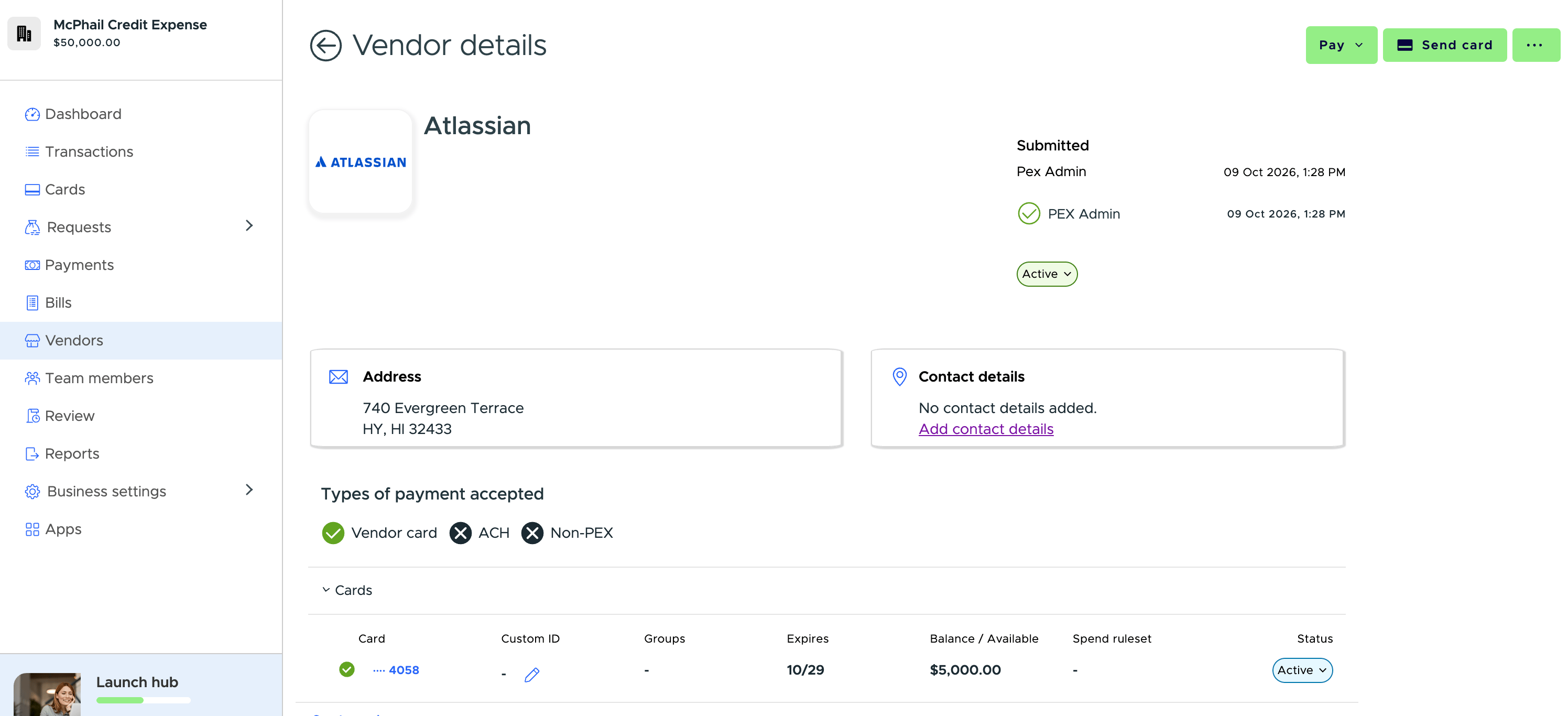
To create a vendor:
-
Log in to the Dashboard
-
Navigate to Vendors
-
Click Add vendor
-
Enter the following details:
-
Vendor name
-
Vendor website
-
Tax and custom IDs (if applicable)
-
Full vendor address
-
Vendor contact name, phone, and email
-
Upload supporting documents (optional)
-
Under Payment Information, enter the Email (for remittance) and select payment method(s):
-
Email (for remittance): where PEX sends payment notices for this vendor. Required for Vendor Card, and for ACH when Vendor payment notifications is enabled. If you entered the contact email first, it’s copied here for you.
-
Vendor Card
-
ACH (requires vendor bank account and routing number)
-
Vendors can have both a virtual card and ACH profile.
-
Click Submit
Vendor approval
-
Vendors will go through the vendor approval workflow unless your account has an auto-approval setup.
-
Users with Manage bills & vendors permission automatically approve vendors.
You can:
-
Edit vendor details
-
Approve or reject vendors
from the Vendor Details page.
To search, sort and act on vendors you’ve already added, see Managing your vendors.
4. Set up approval policies (recommended)
Bill Pay supports multi-level approvals.
To create a policy:
-
Dashboard → Business settings → Workflows
-
Click Approval policies
-
Click Create new policy
-
Choose policy type:
-
Threshold-based
-
Tag-based
-
Advanced
-
Name the policy
-
Choose workflow types it applies to:
-
Bill pay request
-
Bill pay transfer
-
Configure:
-
Auto-approval for requests under a threshold
-
Sequential approval routing (optional)
-
Click Create
-
Enable the policy using the Status toggle
Policies do not apply until they are enabled.
Approval reminders
When you pick Bill pay request as the workflow type, Bill payment requests reminders are switched on for you. Everyone taking part in the policy is signed up, including people who join it later, so a bill doesn’t sit unapproved because someone never turned their own notifications on. Switch it off before you create the policy if you’d rather manage reminders yourself.
The option only appears for workflow types that have a reminder, so you won’t see it on a funding request policy.
5. What’s next?
You’re now ready to:
If you need troubleshooting or want to view history/reports, see the Manage & Troubleshoot Bill Pay article. Last modified on October 19, 2026