Once you’ve added vendors (see Getting Started with Bill Pay), use Vendors in the Dashboard to find them, act on them and review the cards linked to them.
Find a vendor
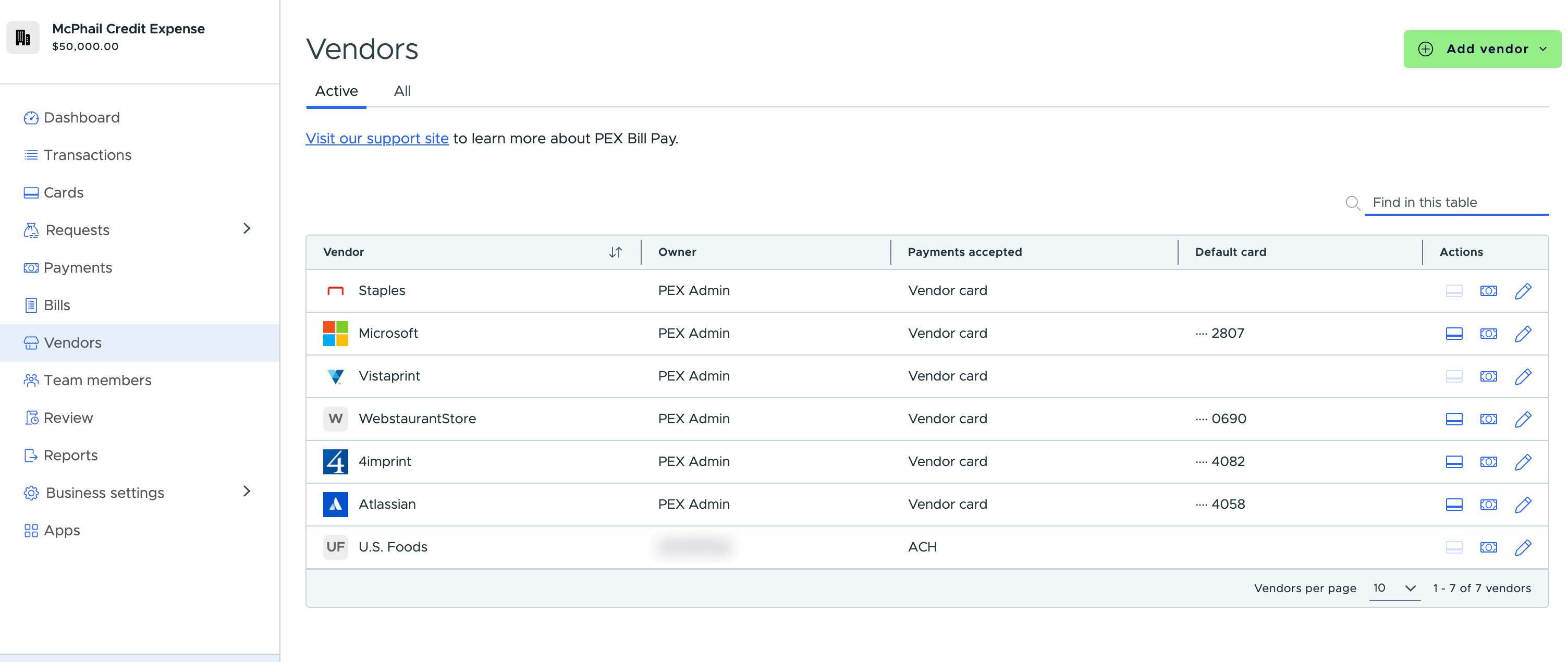
Search by name from the Active or All tab. Search covers your whole vendor list, not just the page you’re looking at. Select the Vendor column header to sort A to Z, and select it again to reverse it.
Each row shows the payment types the vendor accepts and the last four digits of its default card, so you can see how a vendor gets paid without opening them.
Act on a vendor from the list
Three icons sit at the end of each row:
- The card icon opens the transactions on that vendor’s default card
- The bill icon starts a new bill for that vendor
- The pencil icon opens the vendor for editing
The card icon needs the View transactions & reports permission; the bill and pencil icons need Manage bills & vendors. See How to manage permissions. If a vendor has no default card, the card icon tells you so rather than taking you nowhere.
Vendor card details
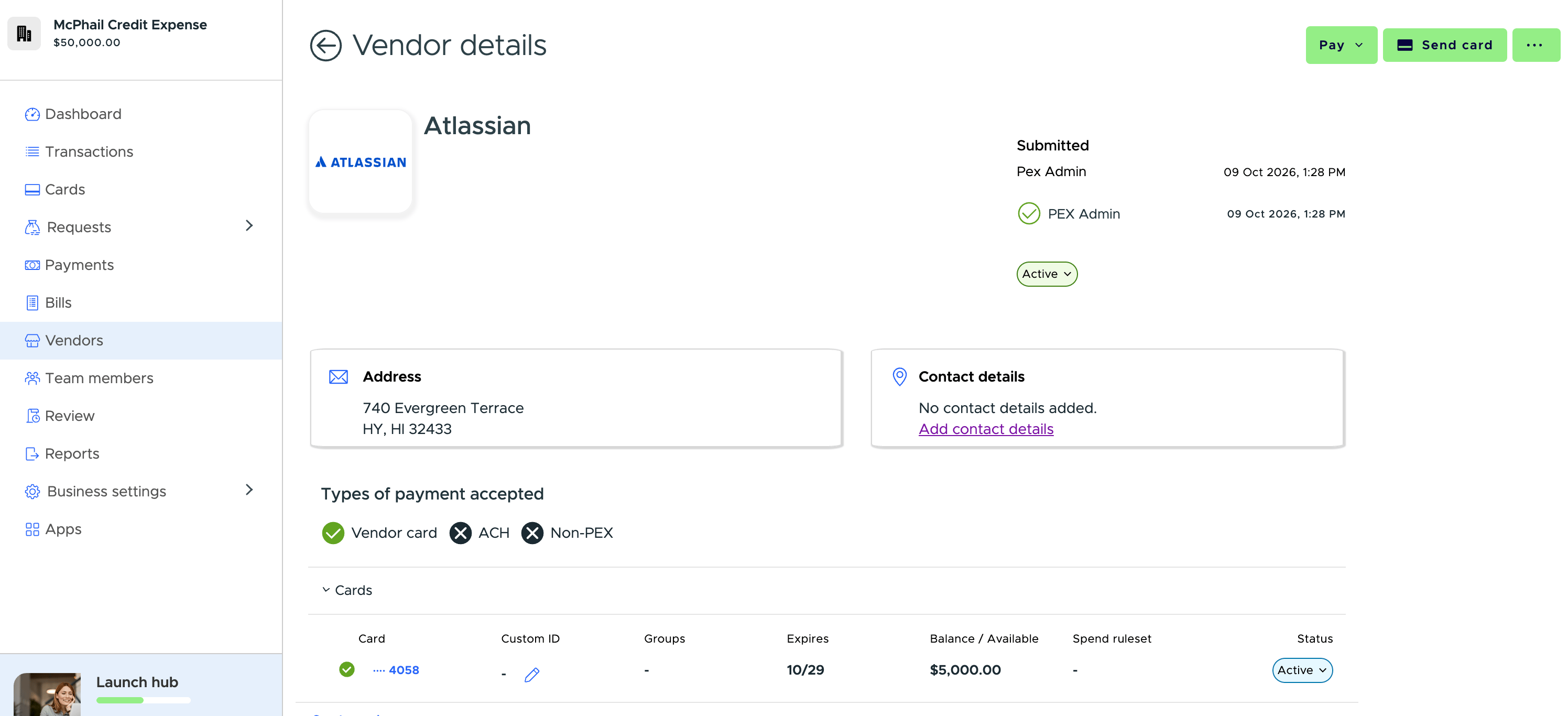
Open a vendor to see every card linked to them. Each card row shows its Custom ID, group, expiration date, spending ruleset and balance for Prepaid or spend limit and available for Credit — alongside the last four digits, the default-card marker and status.
If you reconcile your reports by Custom ID, you can edit it here. That needs the Manage cardholder accounts permission, and we’ll send you a Secure Access Code to confirm the change.
To order a new card for a vendor, see How to Create Vendor Cards.
Bills tab
The Bills tab on a vendor’s details page lists that vendor’s bills, including the Payment method column — ACH, Virtual Card or Paid outside PEX. See Bill Pay: Create & Send a Bill Payment. Last modified on October 19, 2026