How to Change My Password on the PEX Dashboard site
To change your password, you must be able to log into dashboard.pexcard.com. If you cannot log in, please see Troubleshooting Cardholder Login1
Click on the My Profile icon on the upper right corner of the screen (icon of a person)
2
Under “Account Details”, click “Edit” next to password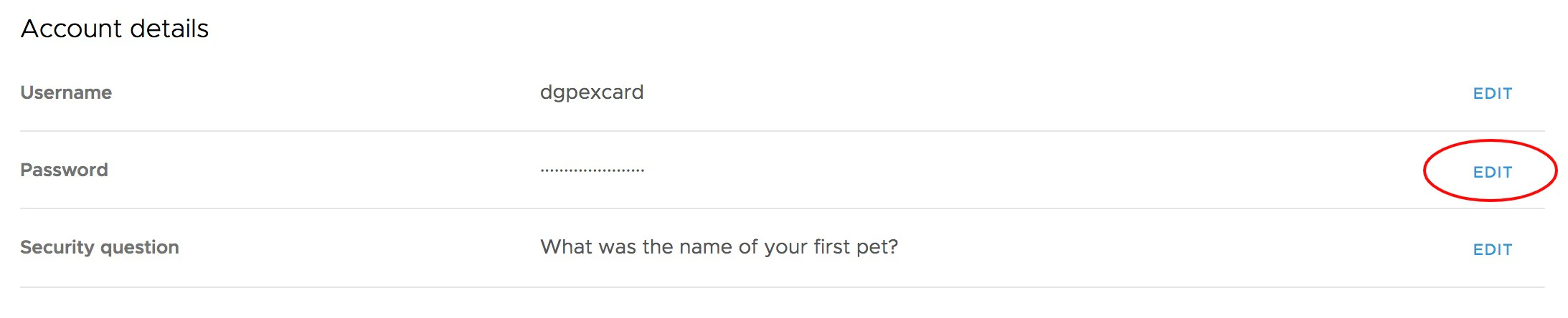
3
Enter the current password
4
Enter and re-enter the new password. Passwords must meet the following requirements:
- Must be between 8 and 16 characters in length
- Must contain at least one digit (0-9)
- Must not begin with a hash symbol (#)
- Palindromes (such as “123aba321”) will be rejected
- Must not contain your username
5
Click “Update” to Save changes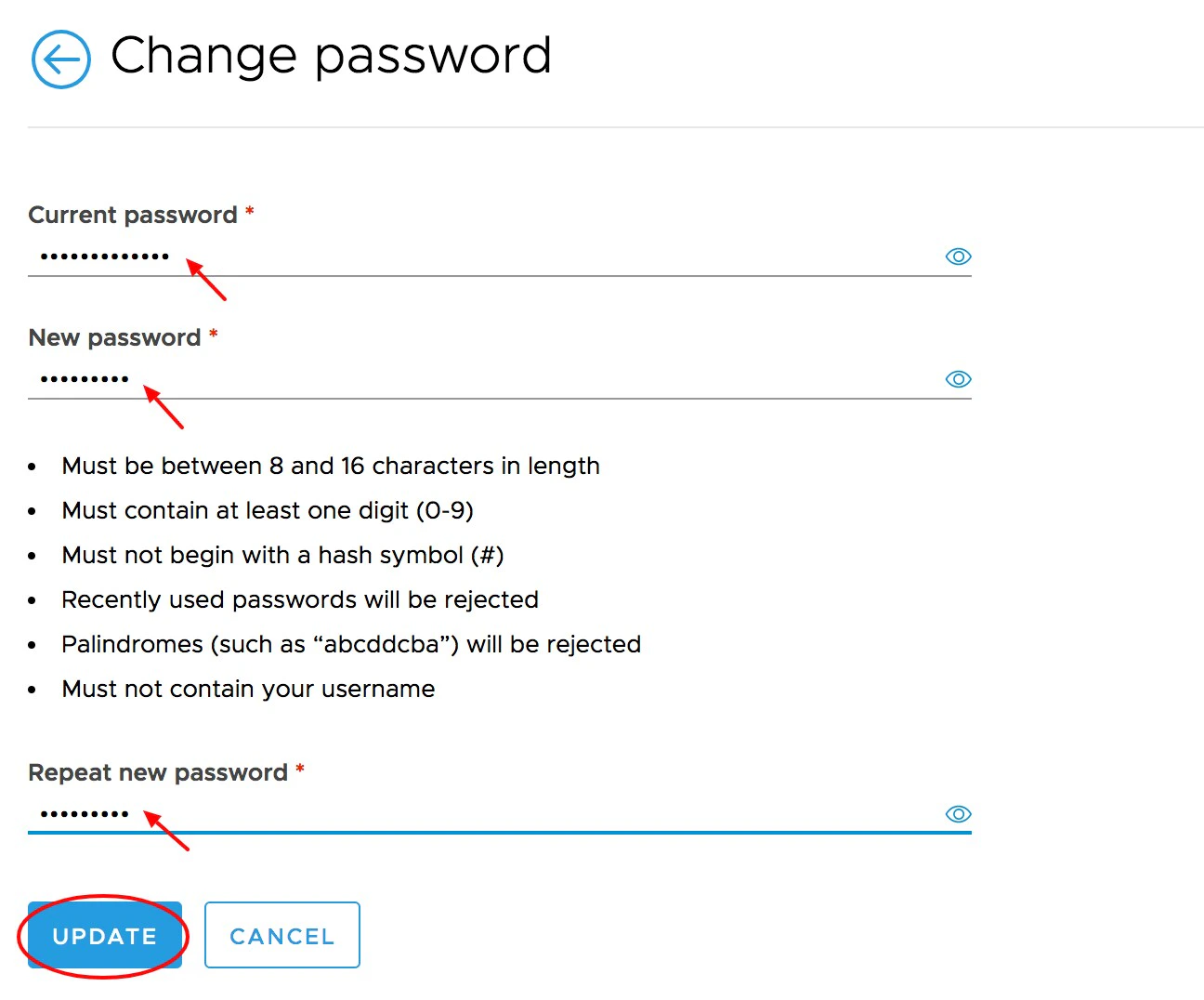
How to Change My Password Using the Mobile App
1
Log into the Mobile App
2
Click the “Settings” icon at the bottom of the screen
3
Click “Account Settings”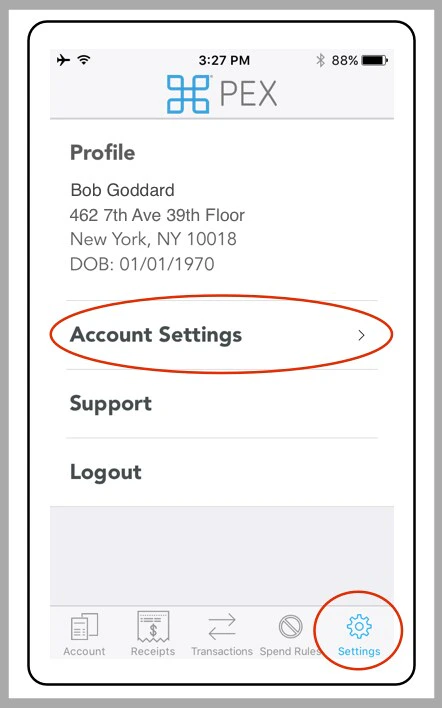
4
Click “Edit” after Password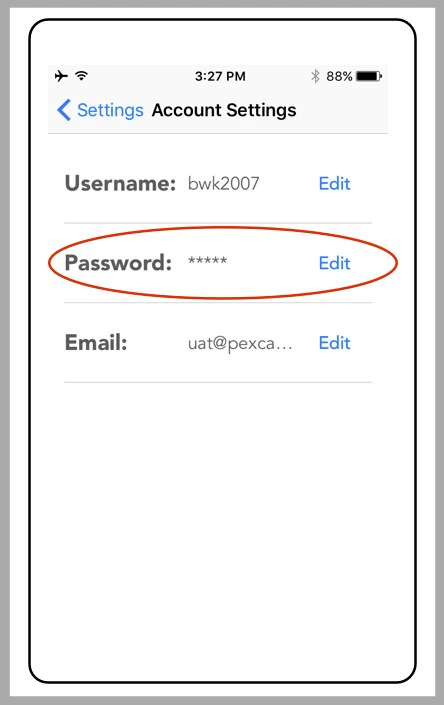
5
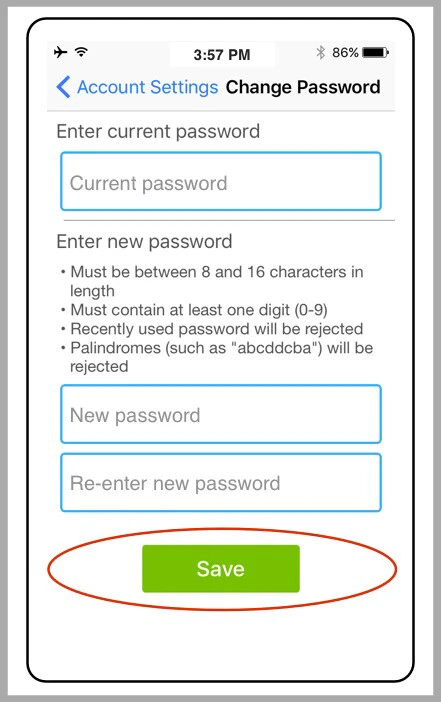
Enter the current password
6
Enter and re-enter the new password
- Follow the system requirements
7
Click the “Save” button to confirm the new password