

Submitting a mileage reimbursement request
1
Log in to the Dashboard at dashboard.pexcard.com.
2
Navigate to Requests from the sidebar menu.
3
Click the Reimbursements sub-menu.
4
Click New Reimbursement in the top right corner.
5
Select Enter mileage details from the dropdown menu.
6
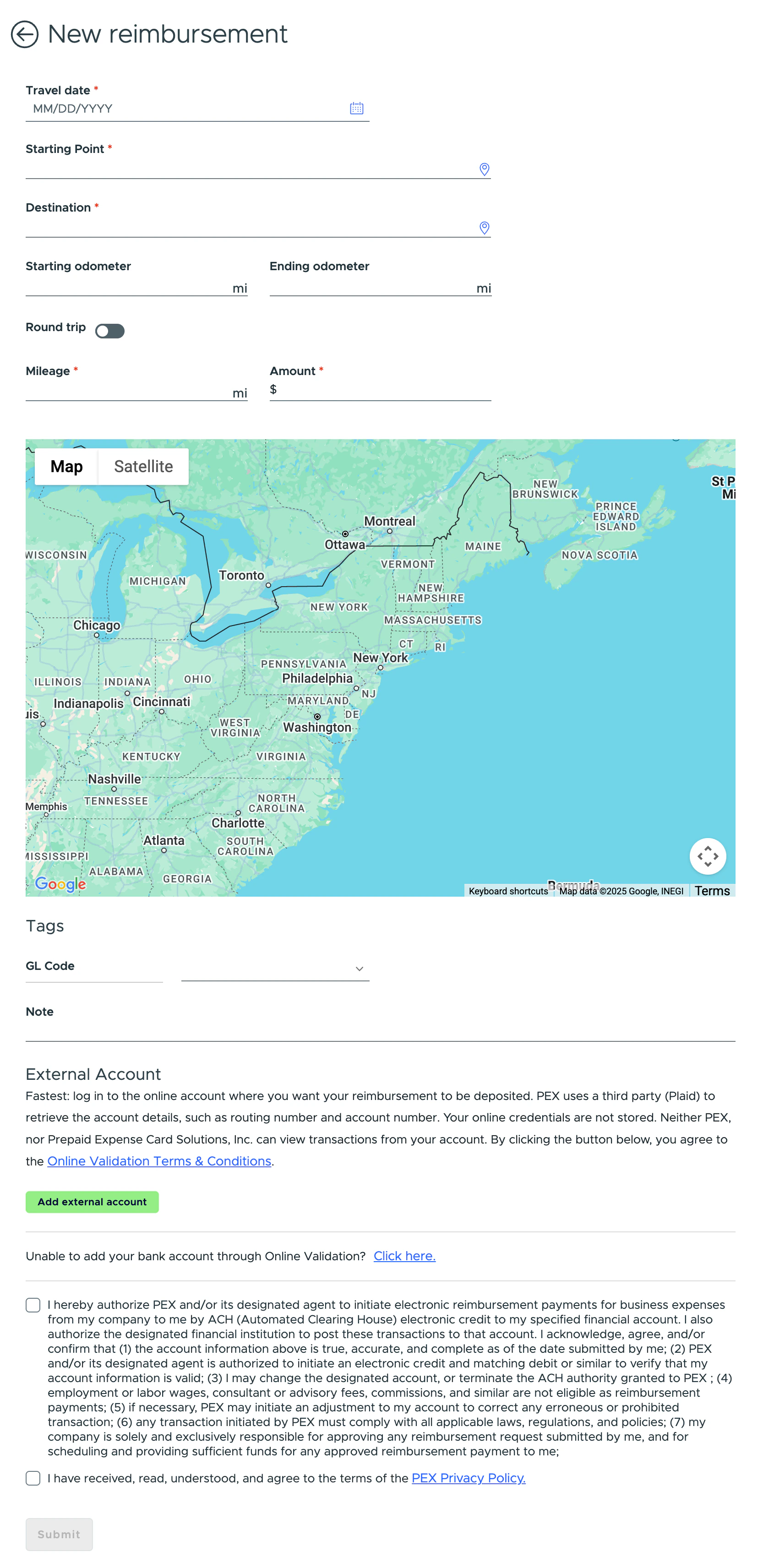
Click the calendar icon to select the travel date.
7
Enter the address of your starting point.
8
Enter the address of your destination.
- PEX uses Google Maps to calculate the distance between your starting point and destination.
- If only the starting point and destination are provided, the mileage and reimbursement amount are calculated based on the calculated distance.
9
Enter the starting odometer value (optional).
10
Enter the ending odometer value (optional). If you have a round trip, turn on the Round trip toggle.
11
Review the mileage and reimbursement amount calculated based on your provided details and the reimbursement rate.
12
Provide tag values under the Tags section (optional).
13
Enter a Note if you want to include one with your request (optional).
14
Click Add an external account under the External account section and log in to your bank account for Instant Account Verification via Open Banking Providers.
- If you cannot log in via Instant Account Verification, click the Click here link under “Add an external account” to provide your account and routing numbers manually.
- You only need to provide external bank account details the first time you submit a reimbursement request.
15
Check the two agreement checkboxes at the bottom of the page. You only need to agree to the agreements the first time you submit a reimbursement request.
16
Click Submit.
Viewing your request status
1
Log in to the Dashboard at dashboard.pexcard.com.
2
Navigate to Requests from the sidebar menu.
3
Click the Reimbursements sub-menu.
- The New Requests tab displays all reimbursement requests pending approval.
- The History tab displays all approved and rejected reimbursement requests.
Note:You’ll receive an email or push notification when your reimbursement request is approved or rejected.
Tracking the payment status
1
Log in to the Dashboard at dashboard.pexcard.com.
2
Navigate to Payments from the sidebar menu. The Payments page displays all payments settled to your external bank account.
Note:One payment may contain multiple reimbursement requests if they were paid in one payment.