Using the PEX Mobile App
1
Download the Mobile App (iOS and Android):
- Download PEX for iOS from the App Store
- Download PEX for Android from the Google Play Store
- The download is free but carrier rates may apply
2
Log in to the Mobile App
3
Click the Settings icon at the bottom of the screen
4
Click Profile
5
Click on the Email field
6
Enter your new email address
7
Click the Save button in the upper-right corner
8
Enter the verification code that was sent to your mobile phone (if verified) or email address
9
Press Continue
Using the PEX Dashboard Site
1
Log in to dashboard.pexcard.com
- If you cannot log in, please see Troubleshooting Cardholder Login
2
Click on the My Profile icon in the upper right corner of the screen (icon of a person)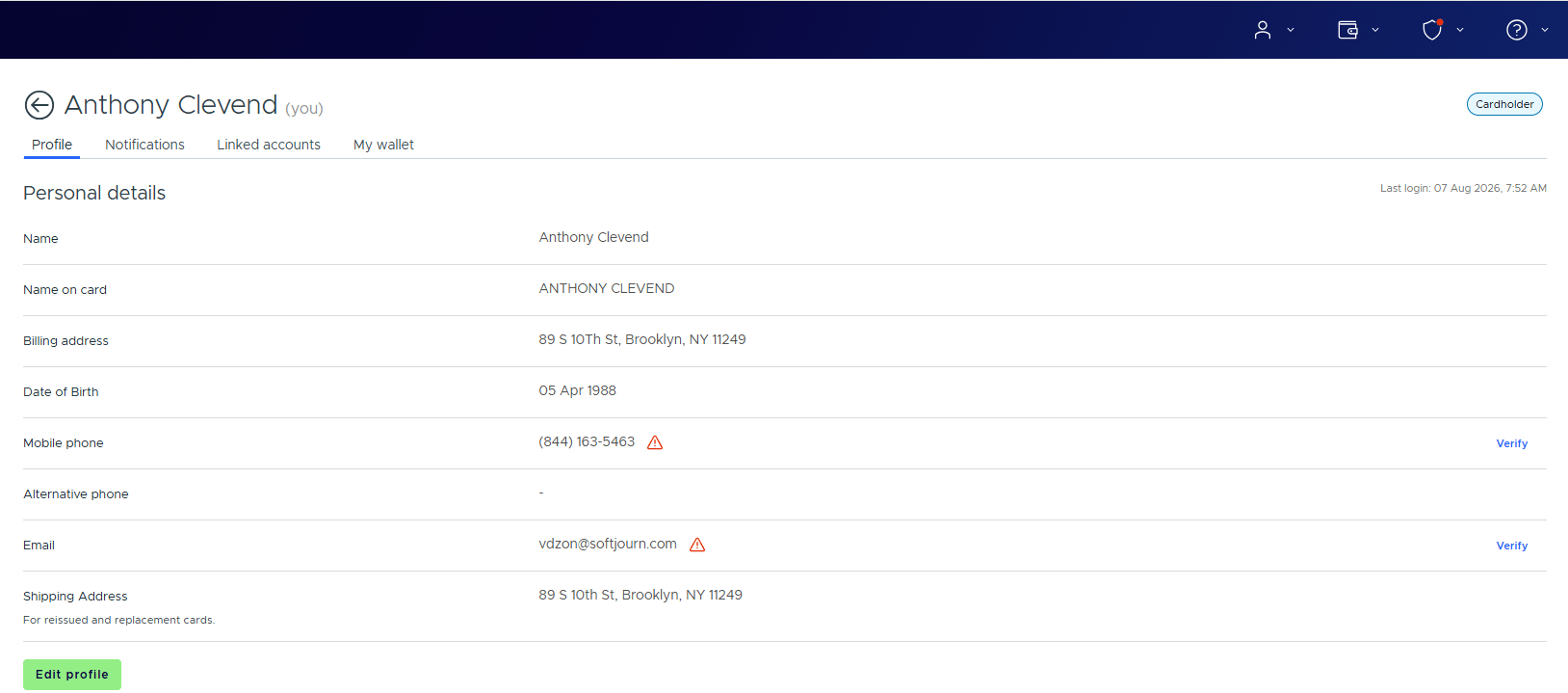
3
Click the Edit profile button
4
Enter the new email in the field provided
5
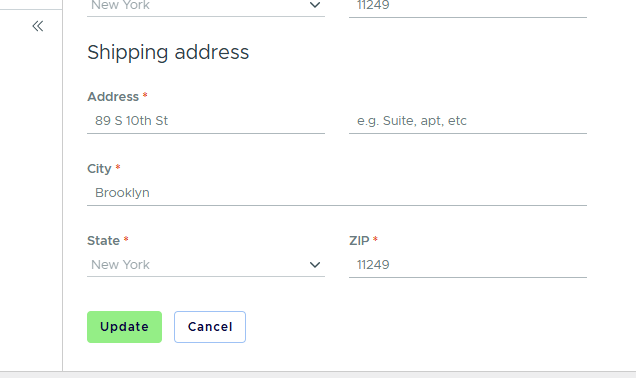
Click Update to save changes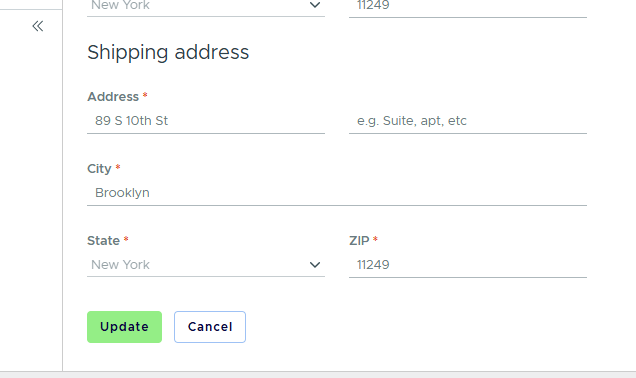
6
Enter the verification code that was sent to your mobile phone (if verified) or email address