

Jump to: Dashboard | Mobile app | Phone | Text message alerts
- Don’t have a Cardholder User Account? See How to create a new Cardholder User Account
- Trouble logging in? See Troubleshooting cardholder login
Check your balance on the dashboard
- Log in to dashboard.pexcard.com
- Your “Available Balance” is displayed on the Dashboard tab, which loads by default when you log in. Note: your “Available balance” is the amount you’re able to spend. It may differ from your “Current Balance” because of pending transactions that haven’t settled yet - click the Transactions tab to see those.
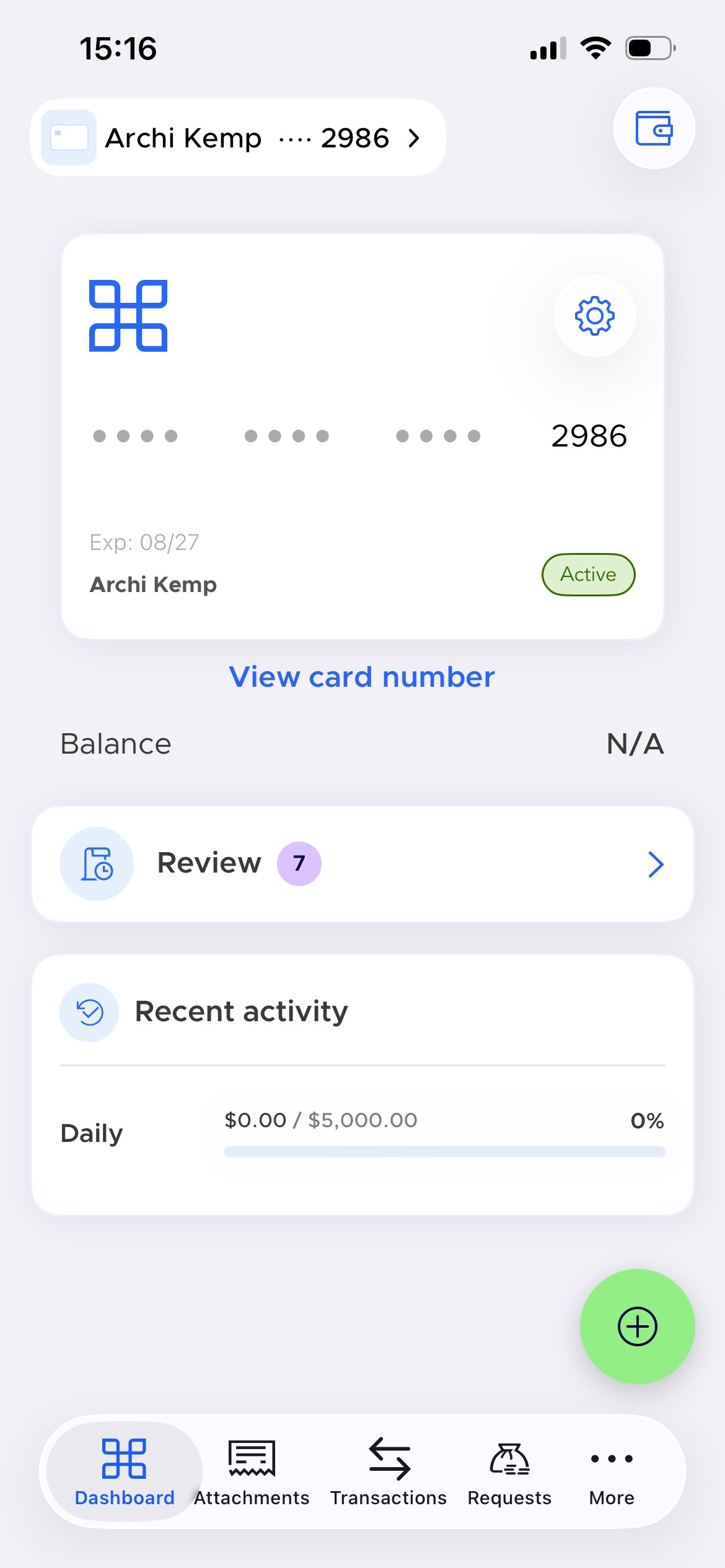
Check your balance on the PEX mobile app
Download the app if you haven’t already - it’s free, though carrier data rates may apply: Then:- Log in to the PEX mobile app
- Tap the “Account” icon
- Your account balance appears on the screen
Check your balance by phone
No account needed. Call 866-685-0898 (see Contact Cardholder Support). You’ll be prompted to enter your card information to locate your account, along with the company’s billing zip code.Get your balance by text message
You can also have your balance sent to you by text — no account needed:- Call 866-685-0898 and follow the prompts to check your balance.
- Once your balance has been read to you, press 3 to opt in to text alerts
- You’ll get a text message with your balance
- Reply to that text with the last 4 digits of your card to confirm
- Repeat steps 1–4 any time you want a new balance update by text
Still stuck?
If you can’t create or log in to a Cardholder User Account, check with your business administrator - they can also look up your card balance for you directly.Note:
- If you are unable to create a Cardholder User Account, please check with your business administrator
- Your business administrator can also tell you your card balance